
Series Wrap Up: Building your capture stack [Capture: Part 10]
May 11 2026 | Issue 95 | Link to this | Subscribe
Hi Reader –
This issue wraps up nine weeks of Evernote capture method tips. The goal was thoroughness — to give you the full picture so you could identify what you're most drawn to and build from there. What you capture is the foundation of Evernote's expanding AI features; the more you centralize, the more powerful they become. And if AI features aren't part of your plans — that's fine too. These capture habits make Evernote significantly more useful regardless.
What I'd like you to take away from all of this: the success of knowing these capture options is practicing them. But trying to practice all nine at once is a fast track to overwhelm.
My advice: pick one or two methods — maybe three. Choose the ones that feel most natural for how you actually work. Get comfortable with those, then expand over time. Just understanding what matters most for you to capture, and the best way to get it in, is valuable in and of itself.
Build Your Capture Stack
Here's a simple way to figure out where to start. Where does most of your capture actually happen?
At your desk → Note Editor, Scratch Pad, Import, Sync Folders
Away from your desk → Mobile Share to Evernote, Camera/Scan, Phone keyboard mic
In meetings or conversations → AI Meeting Notes
Managing email → Email to Evernote
Browsing the web → Web Clipper
Pick the one or two contexts that account for most of your capture moments. The methods that map to those contexts are where your stack starts.
The Full Capture Map: What I Covered (Plus One I Skipped)
A reference of everything covered in this series, and the one I deliberately left out.
💚 Web Clipper (Issue 85)
Best for: Capturing web content — articles, research, AI conversations — directly from your browser on desktop.
💚 Mobile Share to Evernote (Issue 86 )
Best for: Capturing anything from your phone (links, images, content from other apps) without leaving what you're doing.
💚 AI Research Capture ( Issue 87 )
Best for: Preserving conversations from AI tools like ChatGPT or Claude directly into your notes.
💚 Email to Evernote ( Issue 88 )
Best for: Routing important emails and attachments into your account without manual effort.
💚 Camera/Scan (Issue 89 )
Best for: Digitizing physical documents, whiteboards, receipts, and handwritten notes from your phone or tablet.
💚 Sync Folders ( Issue 91 )
Best for: Auto-capturing files from a designated folder on your Mac or Windows desktop into Evernote on an ongoing basis.
💚 Import ( Issue 92 )
Best for: One-time migration of files from other apps — converts compatible formats (.docx, .html, .md) into editable Evernote notes.
💚 Audio Capture ( Issue 93 )
Best for: Everything from quick voice notes on the go (phone keyboard mic) to full meeting transcription and summary via AI Meeting Notes.
💚 Note Editor + Scratch Pad ( Issue 94 )
Best for: Typed notes and quick brain dumps — the foundation of in-app capture, available on desktop, web, and mobile.
And the one I didn't cover:
💚 Evernote Helper This is a system-level quick-note tool, accessible from your menu bar on Mac or Windows, that gets installed on your computer when you install Evernote's Desktop client. I deliberately left it out of this series because I find it performs inconsistently across platforms, and the experience isn't reliable enough for me to coach it as a go-to method. But many people use it successfully. If that's you, keep using it. The idea behind it is great. And maybe it will make the roadmap for some Evernote development love to iron out the kinks soon.🤞🏻
🧠 Academy Members: Get up to speed with the Helper's nuances for your OS in the Masterclass: Evernote Helper.
Reminder: Don't try to build a perfect capture system from day one. Pick your two dominant capture moments. Get fluent with them before you add anything else.
And here's why that work is about to matter even more:
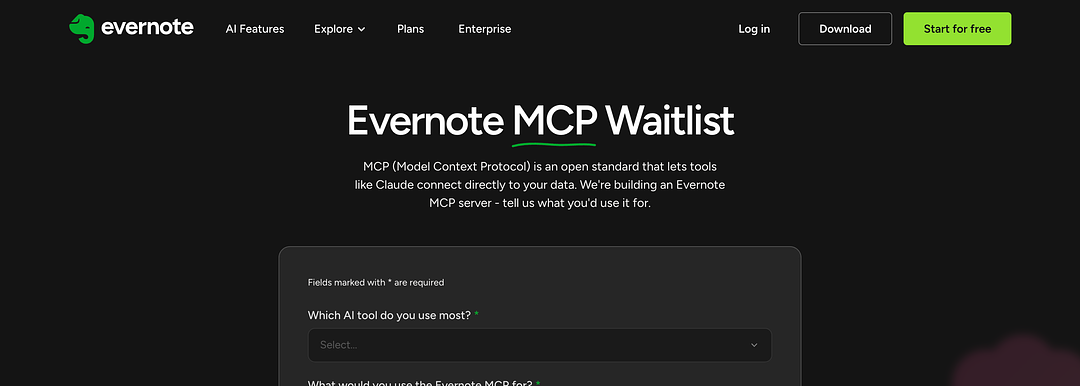
Last week, Evernote launched a waitlist for their MCP beta. MCP — Model Context Protocol — is an open standard that lets AI tools connect directly to data in your apps. Evernote's building one, which means tools like Claude will eventually be able to reach into your Evernote account and work with your notes directly. No copying, no pasting, no switching apps to pull in context.
I've embraced Claude Cowork, and adding Evernote as a connector is exactly what I've been waiting for. Being able to draw on everything I've captured in Evernote as part of that workflow is genuinely exciting.
If this isn't on your radar yet — maybe AI tools aren't central to how you work — just file this one away. But, if you choose to embrace the world of agentic AI, the lessons from this series will make a difference in what you can do. For those ready to explore: Sign up for the Evernote MCP waitlist →
The capture habits you're building now are the foundation for what's coming. The MCP will be there when it's ready, and so will everything you've been capturing.
What's top in your capture stack? Did this series help you out? And are you signing up for the MCP waitlist? Hit reply and let me know.
Cheers to capturing everything that matters –
Stacey

Subscribe to auto-receive my next tip!
No fluff. Just practical, immediately actionable advice from someone who's been teaching Evernote mastery for over a decade. Sent every Monday, for free.