
Best practices for sending emails to Evernote [Capture: Part 4]
March 23 2026 | Issue 88 | Link to this issue | Subscribe
Hi Reader –
Think about how much important information flows through your email inbox every day — project materials, PDFs, decisions made on threads, confirmations, receipts, to-dos buried in messages from last week
I'm not suggesting you forward every email to Evernote. But the information you do want to retain should be in one place.
And if you're not using your unique Evernote email address to forward that information directly into your account, you're leaving one of Evernote's most powerful features on the table.
This is something I do every single day, and it's a cornerstone of my inbox zero practice. Every email I forward to Evernote gets archived in Gmail immediately. It’s now gone from my inbox, and living in Evernote where I can actually use it.
This is one of the habits that separates power users from everyone else. It transforms Evernote from a filing cabinet into a genuine project management tool — and sets you up for real success with AI Assistant and Semantic Search.
How to Get Started
Every Evernote account comes with a unique email address. Find yours in your Evernote account settings:
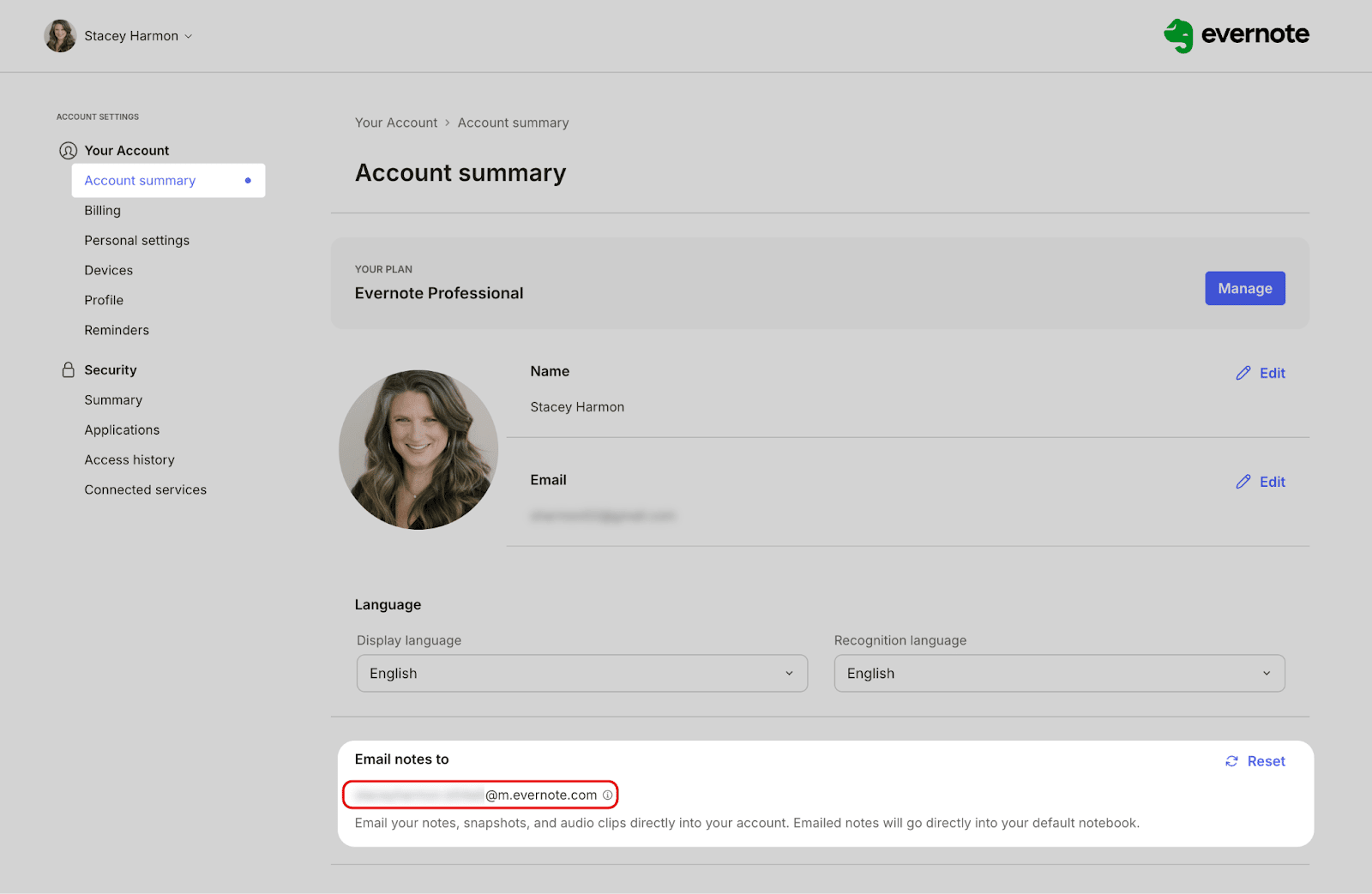
Once you find it, save it as a contact in your email app — something easy to remember, like "My Evernote." This one step is what makes this feature frictionless to use.
From there, the process is simple. Open any email worth keeping, forward it to your Evernote email address, and it arrives in your account as a note.
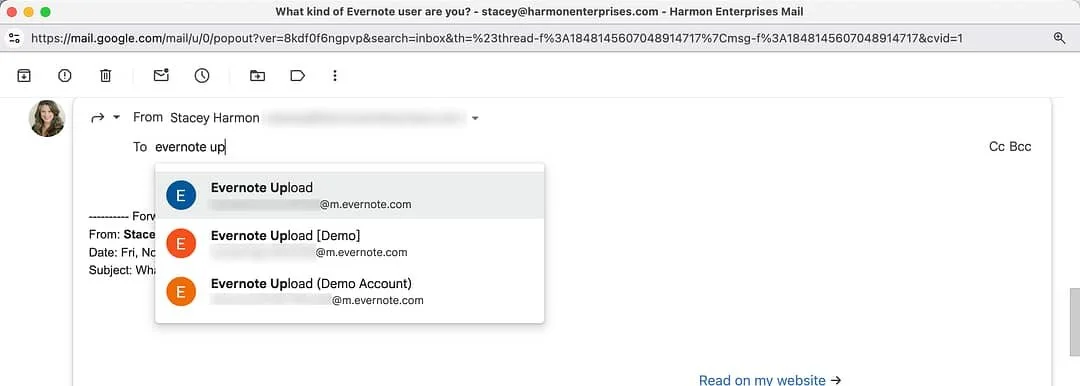
Note: Do not share this email address with anyone. If you do, they’ll be able to send anything to your Evernote account. If it does get compromised, you can reset it to a new one in your settings.
The Value of Forwarding Email to Evernote
A few things worth knowing about what gets captured when you forward an email:
The full body of the email lands in Evernote as a note.
Attachments come with it — PDFs, documents, images, all of it. This alone makes the feature incredibly useful.
Anyone CC'd on the email is captured too, so decisions, context, and key participants are all preserved in one place.
From there, you can create tasks directly from the note — turning action items from an email thread into Evernote tasks without any retyping.
This is what it looks like to truly centralize your digital life. And it’s why power users utilize this feature every day.
There's More You Can Do — But Should You?
You may have heard that you can use subject line commands to automatically route forwarded emails into specific notebooks, add tags, or set reminders. You can also set up email filters to automatically forward entire categories of emails to Evernote.
These features exist, but — as I’ve learned over the last 15 years of coaching Evernote users on strategic skill usage and workflow design —they rarely make sense to implement.
For most users, these features don’t provide the most efficient way to achieve the desired outcome.
Yes, you can append the subject line of a forwarded email to tag, file, and/or title a note. But, is this the quickest way to do any of these actions? Inside the Academy, I make the strong case for why there are other, more efficient options.
And, automating the forwarding of emails to Evernote often creates unnecessary clutter and unorganized chaos in accounts.
Jumping straight to automation often creates more problems than it solves. There are select cases where this does make sense, but I teach that this should be a thought-out workflow design decision based on an understanding of all your options for achieving the outcome you’re after.
🧠 Academy Members: Get a complete walkthrough of the feature options and my best practice workflow recommendations in the Feature Tutorial: Send Email to Evernote.
Why This Matters for AI Assistant and Semantic Search
Think about what happens when years of important emails live in Evernote alongside everything else you've captured.
You can ask the AI Assistant about a project from two years ago and surface the email thread, the attachments, and the decisions that were made — all in one place, without digging through your inbox.
That's the power of centralization. And email forwarding is one of the most direct ways to build it.
Next time: We're moving to mobile — and how you can capture from mobile using your phone camera.
Cheers to your productivity —
Stacey

Subscribe to auto-receive my next tip!
No fluff. Just practical, immediately actionable advice from someone who's been teaching Evernote mastery for over a decade. Sent every Monday, for free.