
Your Phone’s Secret “Save to Evernote” Button [Capture: Part 2]
March 9 2026 | Issue 86 | Link to this issue | Subscribe
Hi Reader –
Last week, we covered the Web Clipper — Evernote's browser extension that lets you save web content to Evernote with one click. It's an amazing feature...but, the web clipper only works from a browser on your computer.
And, in practice, a lot of what we capture comes to us when we are on our phones — scrolling through a news app, reading a website, snapping a photo, shopping on Etsy, finding something useful in a text message, or spotting inspiration on Instagram.
So what's the mobile equivalent of the Web Clipper for Evernote?
It's your phone's built-in share button. And once you set it up properly, it becomes your universal "Save to Evernote" button — working across virtually every app on your device.
The Mobile Equivalent of Web Clipper
Evernote doesn't have a traditional web clipper for mobile. Instead, it plugs into something your phone already does natively: sharing.
Every modern iOS and Android device has a share function built into the operating system.
You've probably used it to send a link to a friend or share a photo. But that same share menu can send content directly to Evernote — from any app that supports sharing.
That means web pages from any browser, articles inside news apps, photos from your camera roll, text messages with important details, social media posts — all of it can land in Evernote in seconds, without switching apps or copying and pasting anything.
Think of it as your phone's version of the Web Clipper, except it works everywhere — not just in a browser.
How Mobile Share to Evernote Works
If you want to start sharing content from your mobile device to Evernote, you need to enable Evernote as a sharing target on your device. To do this, follow the steps in this Help & Learning article from Evernote.
Once that's done, the process is simple:
Find something worth saving in the app.
Tap the Share button.
Tap the Evernote app icon.
Tap Save.
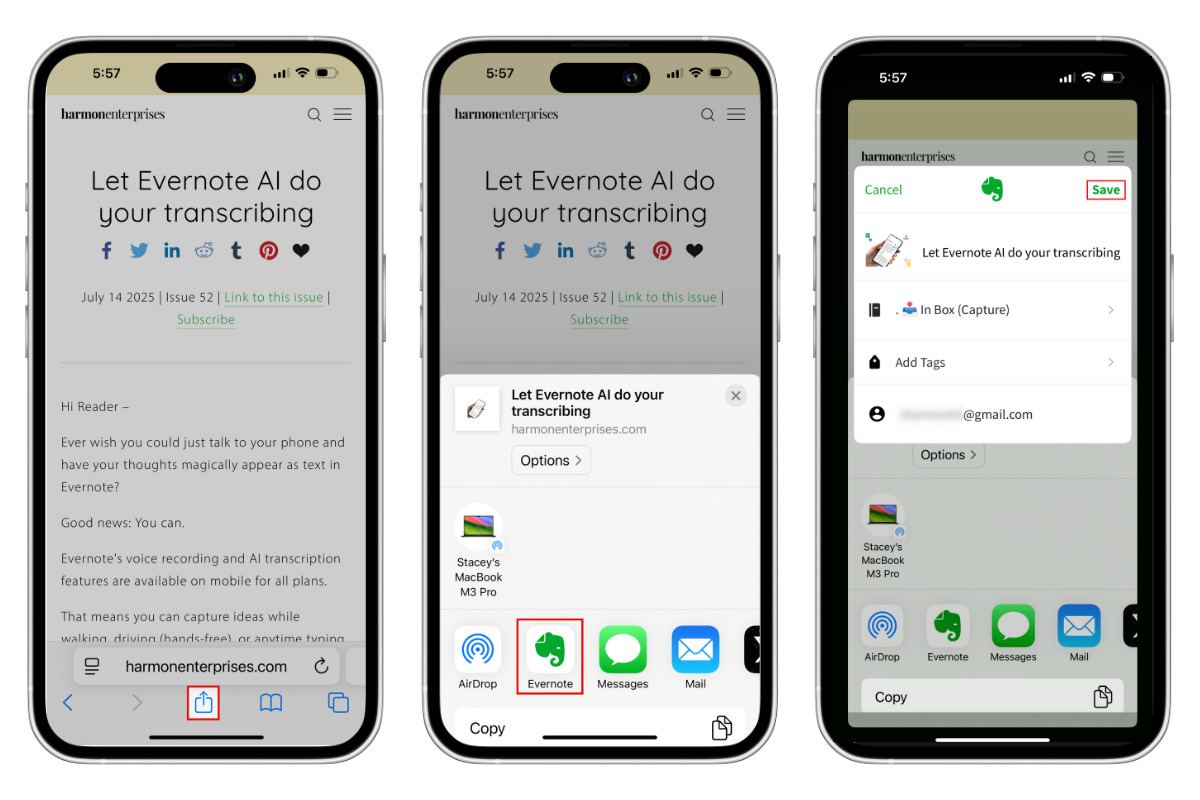
Then, a note with the content lands directly in your Evernote account. (Note: You will need an active Internet connection at the time of capture.)
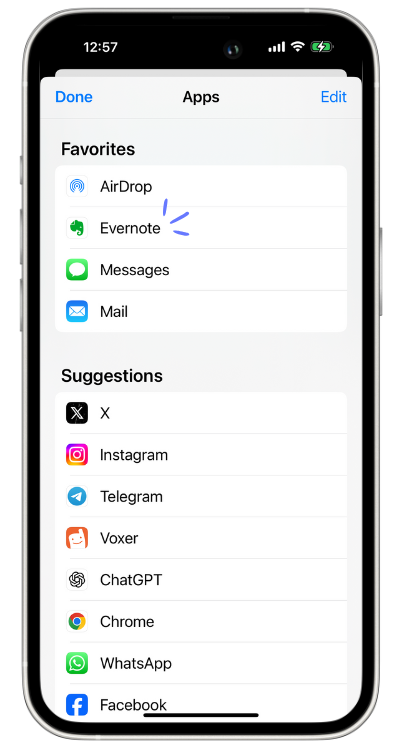
🔥 Tip: Want to make it even faster on iOS? Add Evernote to your Share Favorites so it appears at the top of your share menu every time — no scrolling:
Tap share, and scroll right.
Tap “more,” and hit edit.
Find Evernote, and tap “+.”
Then, drag it to the top of the list.
Some Android users will have a similar option, but there's no standardized process like there is on iOS. Your best options depend on your device and Android version — the Academy lesson has the full breakdown.
🧠 Academy Members: Get the full walkthrough — including step-by-step setup for iOS and Android and a video demonstration — in the Evernote Mobile: Share To Evernote lesson.
Why This Matters for AI Assistant and Semantic Search
We consume a lot on mobile — arguably more than on desktop. Every article you read, every interesting post you scroll past, every link someone texts you — that's potential knowledge that disappears the moment you keep scrolling.
When your share button is configured and front-of-mind, capturing on mobile becomes frictionless. And the more you capture, the more powerful the AI Assistant and Semantic Search become. A year from now, instead of trying to remember where you saw something, you'll be able to ask Evernote — and it'll tell you.
Cheers to your productivity —
Stacey

Subscribe to auto-receive my next tip!
No fluff. Just practical, immediately actionable advice from someone who's been teaching Evernote mastery for over a decade. Sent every Monday, for free.