
Evernote’s audio capture options [Capture: Part 8]
April 27 2026 | Issue 93 | Link to this issue | Subscribe
Hi Reader –
Audio capture in Evernote has come a long way.
What started as a simple audio recording feature in the note editor has expanded into a more robust set of options across devices — spanning your phone, desktop, and even the AI Assistant.
The method that you use for capturing audio really depends on the circumstances. Let’s walk through the options.
Option 1: Phone Keyboard Audio Capture
This method lets you talk to Evernote on your phone and have it transcribed into text in the note.
It’s actually not an Evernote-specific feature – it works in any app on your phone, Evernote included. It uses the microphone option on your phone’s keyboard to dictate into the app.
From inside a note, tap the recording button that’s part of your phone’s keyboard and start talking. Your phone will start writing out the words you speak.
This is the feature I reach for when I'm away from my computer and a thought hits — driving, walking, waiting in line. No typing required.
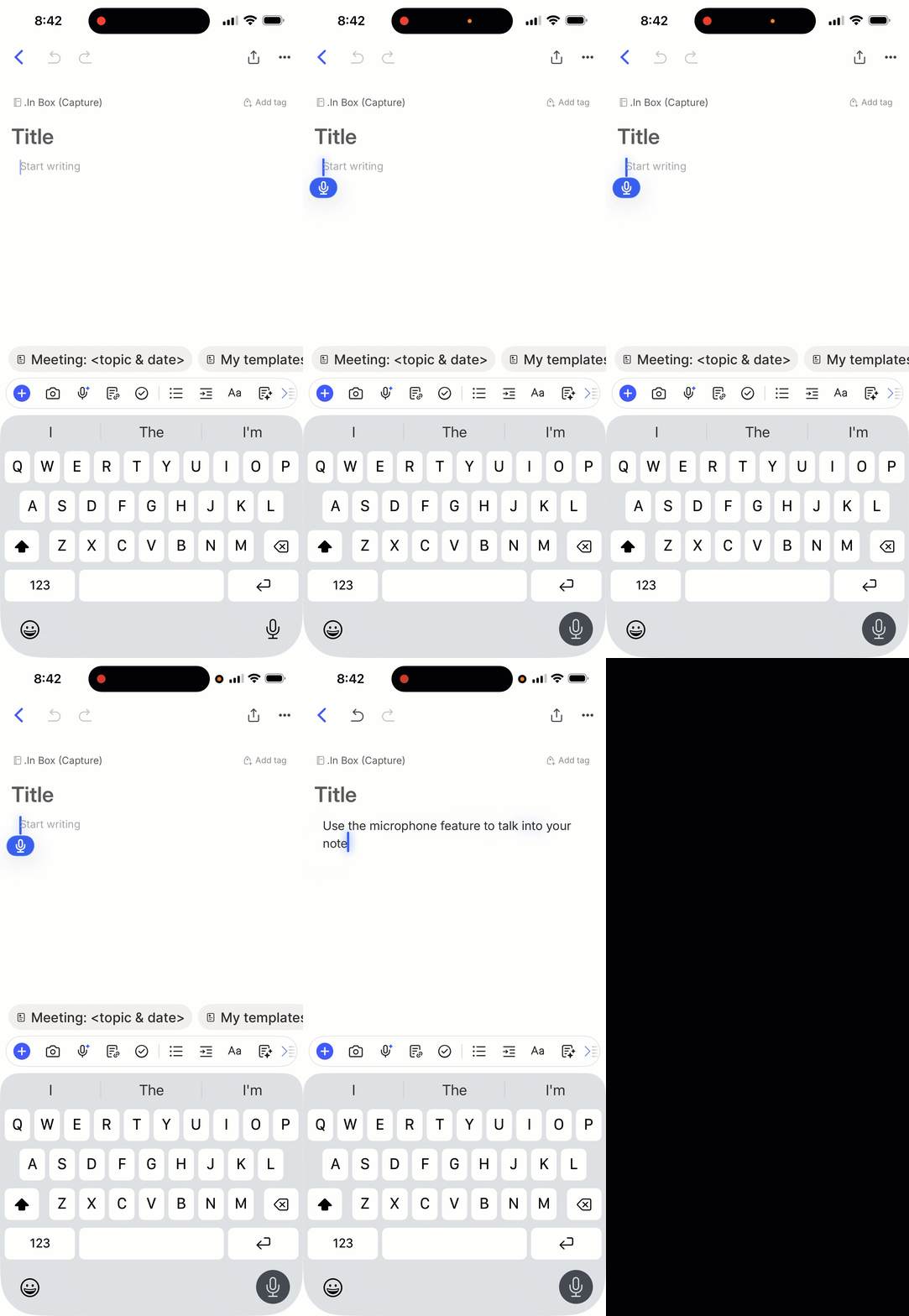
Best option for: On-the-go capture when you're away from your desk.
Option 2: Talk to AI Assistant
This one is a new Evernote feature — Evernote added the ability to speak directly to AI Assistant.
It’s currently specific to the desktop and web apps as AI Assistant isn’t (yet) available on mobile.
Rather than typing your prompt into the AI Assistant panel, you can tap the microphone icon and just talk. AI Assistant transcribes your spoken words, then processes your request just as it would a typed one.
This isn't exactly a capture method in the traditional sense — you're not creating a new note with your words. But it does open up some interesting voice-driven workflows: asking AI Assistant to summarize a note, draft content, or answer a question — all hands-free.
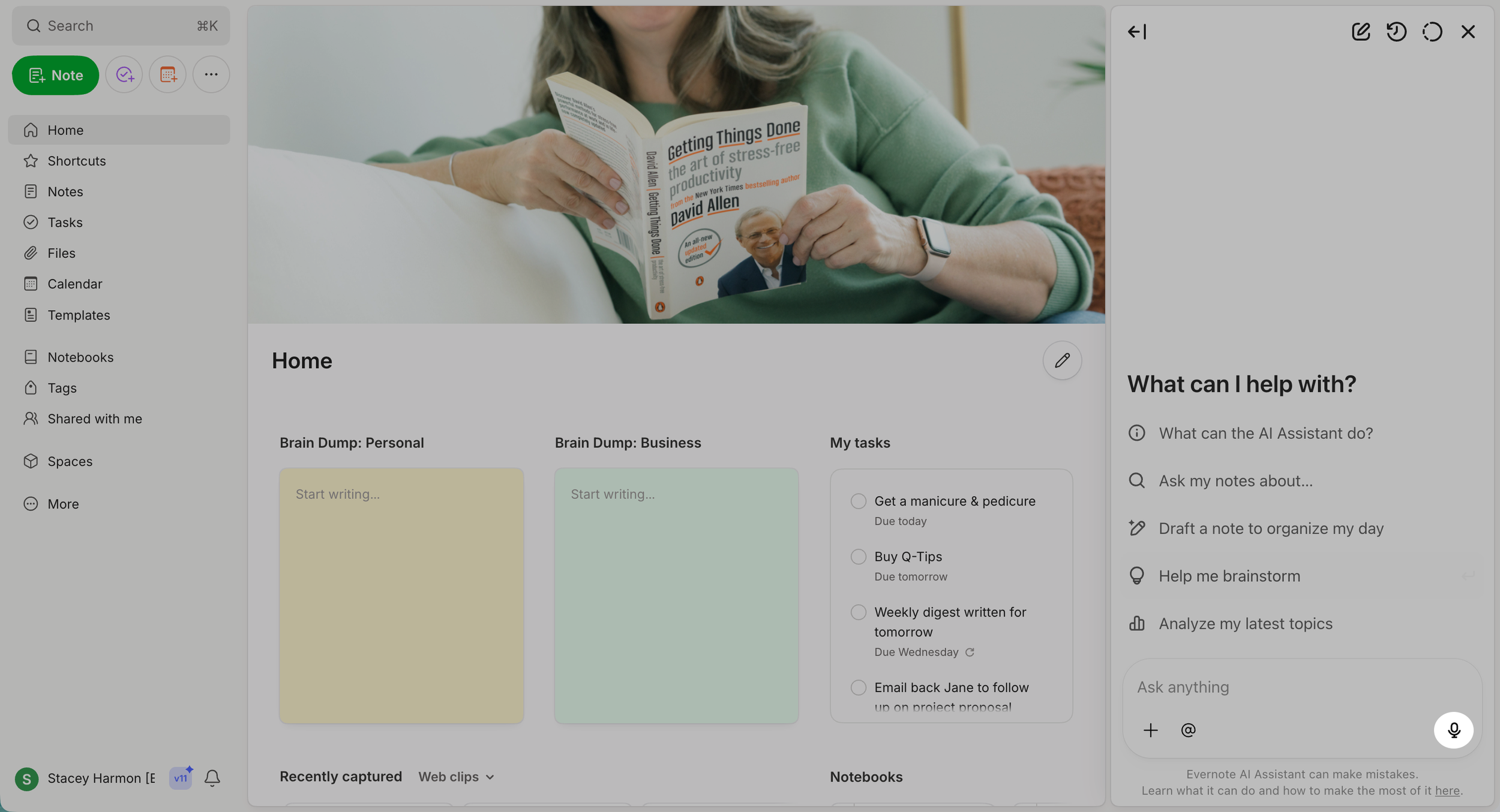
Best option for: Voice-driven AI interactions when typing isn't convenient or you prefer to speak your query.
Option 3: AI Meeting Notes
This is my personal favorite — and maybe the most popular Evernote audio feature (Academy members use it all the time).
AI Meeting Notes lets you record meetings directly within Evernote — both in-person conversations and online calls — and automatically generates a transcript and summary, with speaker recognition in most languages.
No more scrambling to take notes during a conversation. No more losing track of who said what. You capture the whole thing, and Evernote does the heavy lifting to make it searchable and summarized.
The feature has also improved since launch:
✅ You can record up to 2 hours per session (up from 1 hour)
✅ You can transcribe just a portion of the recording (brand new option)
There are also new entry points for starting a recording. Trigger AI Meeting Notes from:
✅ The note editor (as always)
✅ A Calendar notification (new)
✅ The Calendar view (newer)
✅ The pre-formatted Calendar note template — if you've enabled this setting and create a new note from a calendar event, you'll see the option to start the recording from the meeting note (new-ish)
Once the transcript and summary are in Evernote, you can use that content inside projects, link it to related notes, extract tasks and build on it from there.
This is the feature that makes the most sense for anyone who has ever wished they could just be present in a meeting and still walk away with organized notes.
Best option for: Capturing conversations, trainings, interviews, brainstorms, and meetings — in-person or online.
🧠 Academy Members: Get comprehensive training on AI Meeting Notes — including how to use it for in-person and online recordings, the transcription features, and how to integrate meeting content into your Projects workflow — in the Feature Training: AI Meeting Notes.
Capture Without Friction
The through-line across all three options? Getting information out of your head (or out of a conversation) and into Evernote without friction — so you can actually use it later.
Audio capture isn't just a nice-to-have. For many workflows, it's the fastest and most natural way to get something captured in the moment.
Now, it’s your turn. Try one of these audio capture methods today to get your ideas effortlessly into Evernote.
Cheers to your productivity –
Stacey

Subscribe to auto-receive my next tip!
No fluff. Just practical, immediately actionable advice from someone who's been teaching Evernote mastery for over a decade. Sent every Monday, for free.