
In-app capture: the basics worth revisiting [Capture: Part 9]
May 4 2026 | Issue 94 | Link to this issue | Subscribe
Hi Reader –
In-app capture is the most basic of capture techniques. Every Evernote user already knows this.
That's why we haven't covered note capture options so far in this series — every part has been about getting content from somewhere else into Evernote.
The Web Clipper grabs from your browser.
Mobile Share grabs from another app on your phone.
Email-to-Evernote
Sync Folders
Import from other apps
The Evernote camera
…all of those start with content outside Evernote.
But as we get close to wrapping up the series, there are a few in-app capture options worth being familiar with, beyond just typing into a note.
The Note Editor
This is the most fundamental way to capture in Evernote: open a note and start typing.
That's the foundation, and often, it's all you need. But the Note Editor isn't just a typing surface — it's a multi-input capture canvas. The Insert menu (or the slash command "/" accessible in the body of the note) opens up a submenu with several capture types worth knowing (all falling under the Media header).
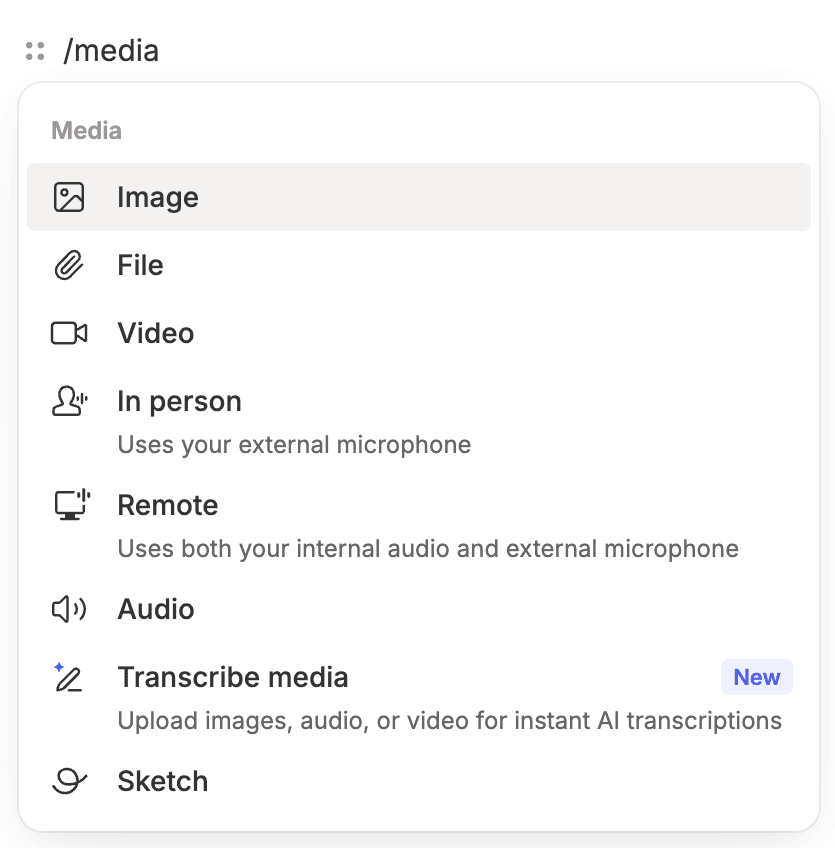
Image, File, Video — upload any of these to the note. They all open the same upload interface; pick a qualifying file from your device.
In person and Remote — these are the two AI Meeting Notes triggers we covered last week. In person uses your external microphone; Remote uses both your internal audio and external microphone (better for online meetings). Both record the meeting and produce a transcript and summary.
Audio — inserts an existing audio recording as an note attachment. This is different from In person and Remote recording options — this one just attaches the recording to your note, just like an image, or other file type.
Transcribe media — upload an existing image, audio file, or video for an instant AI transcription.
Sketch — allows you to add simple handwriting or illustrations to the note editor.
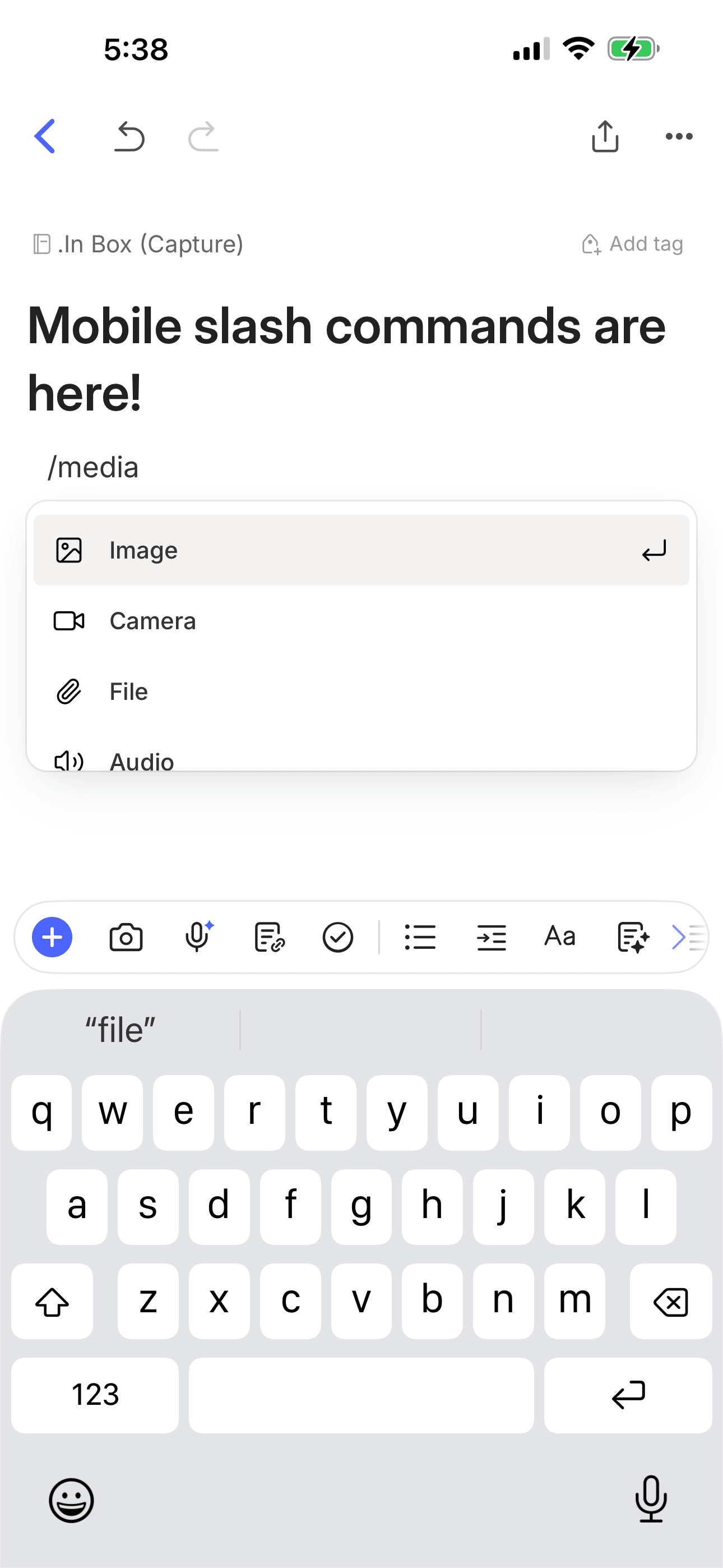
A note on the slash command: typing "/" anywhere in a note body opens the Insert menu inline — no toolbar reach or hunting around the menus. It's a micro-efficiency that saves a few seconds every time, and a few seconds repeatedly practiced becomes hours. Power users really embrace this option.
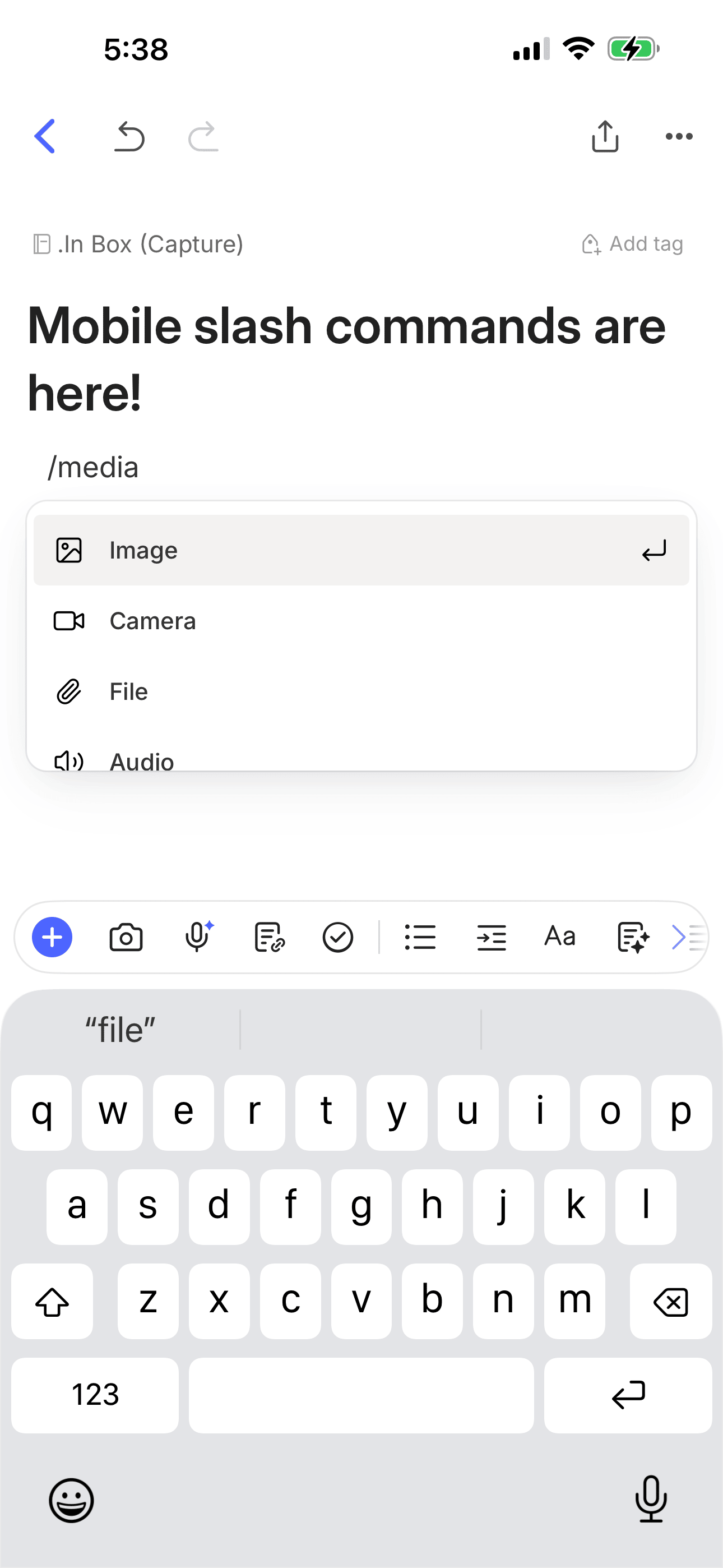
Available since 2024 on desktop and web, slash commands are now also available on mobile (added this month!). Be sure you are using Mobile v11.12+ to access them.
🧠 Academy Members: Get the full understanding of the Note Editor insert features in the Note Editor Feature Training.
The Scratch Pad
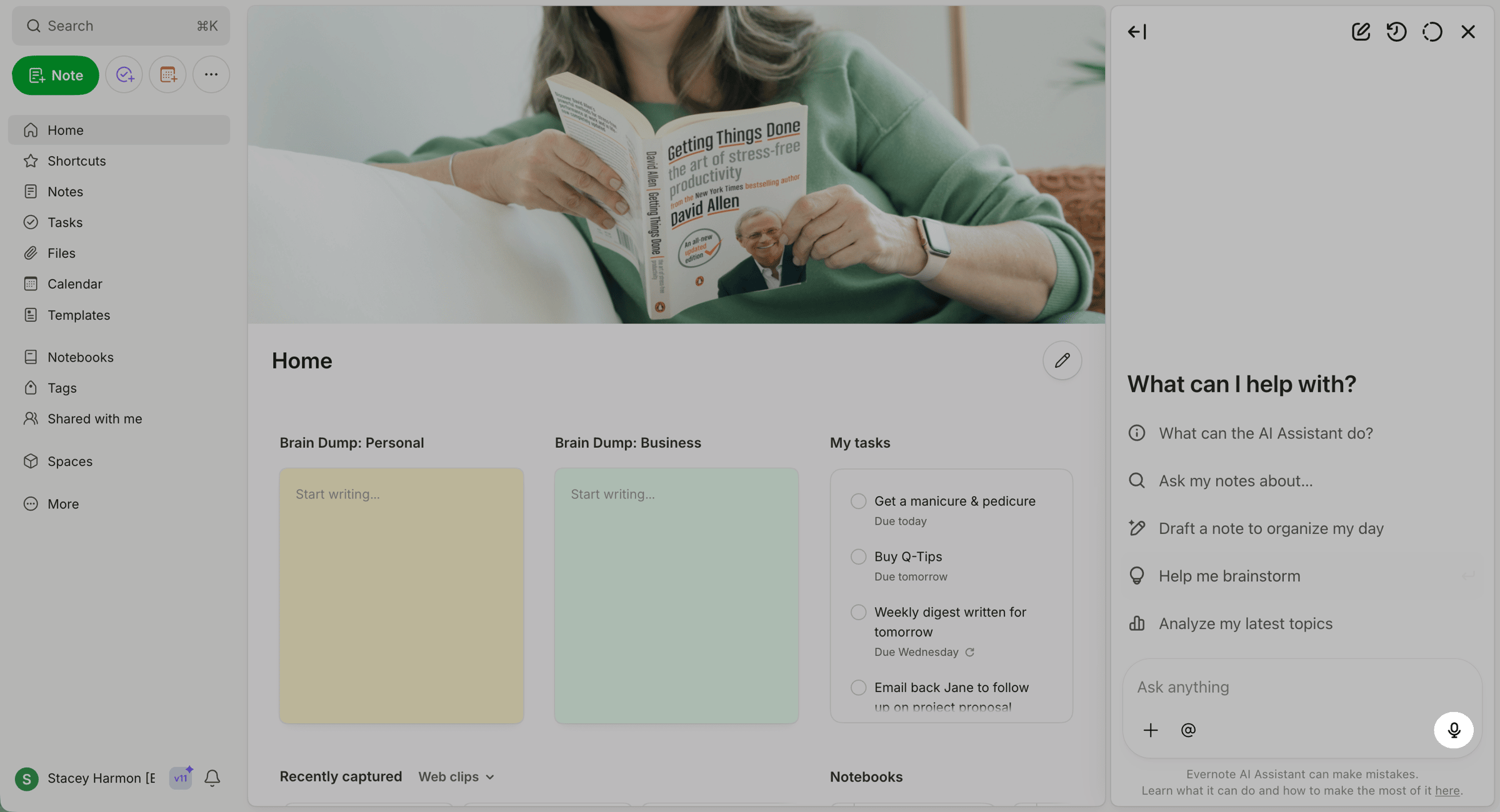
The Scratch Pad is one of Evernote's Home Widgets (and my personal favorite!). It's a quick text box that lives on Evernote Home.
Available on all clients, the Scratch Pad lets you start typing without creating a new note, committing to a notebook, adding a title, or any of the small decisions that can slow down a quick capture. Once captured, convert your thoughts to a note with a click.
Three things worth knowing:
You can add more than one Scratch Pad to your Home, and rename each one. The widget title becomes the note title when you convert. So if you set up "Brain Dump: Personal" and "Brain Dump: Business" Scratch Pads (the two on my own Home), every conversion creates a contextually-titled note ready to file.
You can change the color of each Scratch Pad — useful when you want to personalize the look of Evernote, or to visually distinguish multiple Scratch Pads at a glance.
Widget order can be different on mobile and desktop. This means you can prioritize the Scratch Pad on mobile (where I most often use it) by placing it at the top of your Home screen, and make a different choice on desktop.
🧠 Academy Members: Get more out of the Scratch Pad on both Desktop and Mobile with this detailed overview of the Scratch Pad Widget
Why This Matters for AI Assistant and Semantic Search
As we've extensively covered already, everything you capture or create in Evernote gets indexed by Evernote. Every capture in either spot becomes a real Evernote note. That means AI Assistant can summarize it, and Semantic Search can surface it.
The fastest capture is also the surest way to feed your future AI use cases. A logged Scratch Pad thought from Tuesday becomes a summarized insight on Friday — but only if you captured it to Evernote in the first place.
Where You Are Now
Across the last nine emails, this series has covered a range of capture methods. Some you probably knew. Some were probably new. And my hope is that, by now, you've likely identified the few that actually fit your day.
That was the point of the series — not to master all of them, but to give you a clear menu so you could pick the ones that earn a place in your workflow.
One more installment next week and we close out this series.
Cheers to your productivity –
Stacey

Subscribe to auto-receive my next tip!
No fluff. Just practical, immediately actionable advice from someone who's been teaching Evernote mastery for over a decade. Sent every Monday, for free.