
How to import content from other apps [Capture: Part 7]
April 20 2026 | Issue 92 | Link to this issue | Subscribe
Hi Reader –
Last week we looked at Sync Folders — the feature that automatically captures files from folders on your computer into Evernote. If you've been using Evernote for a while, you might remember that feature under a different name: Import Folders.
When Evernote renamed Import Folders to Sync Folders, they freed up the word "Import" for something different entirely. And that's what we're covering today — Evernote's Import feature, which lets you bring content from other apps into Evernote as real, editable notes.
If you have useful content sitting in Google Docs, Word files, Apple Notes, or an old Notion workspace, this is how you move it over.
The Import Tool: Where to Find It
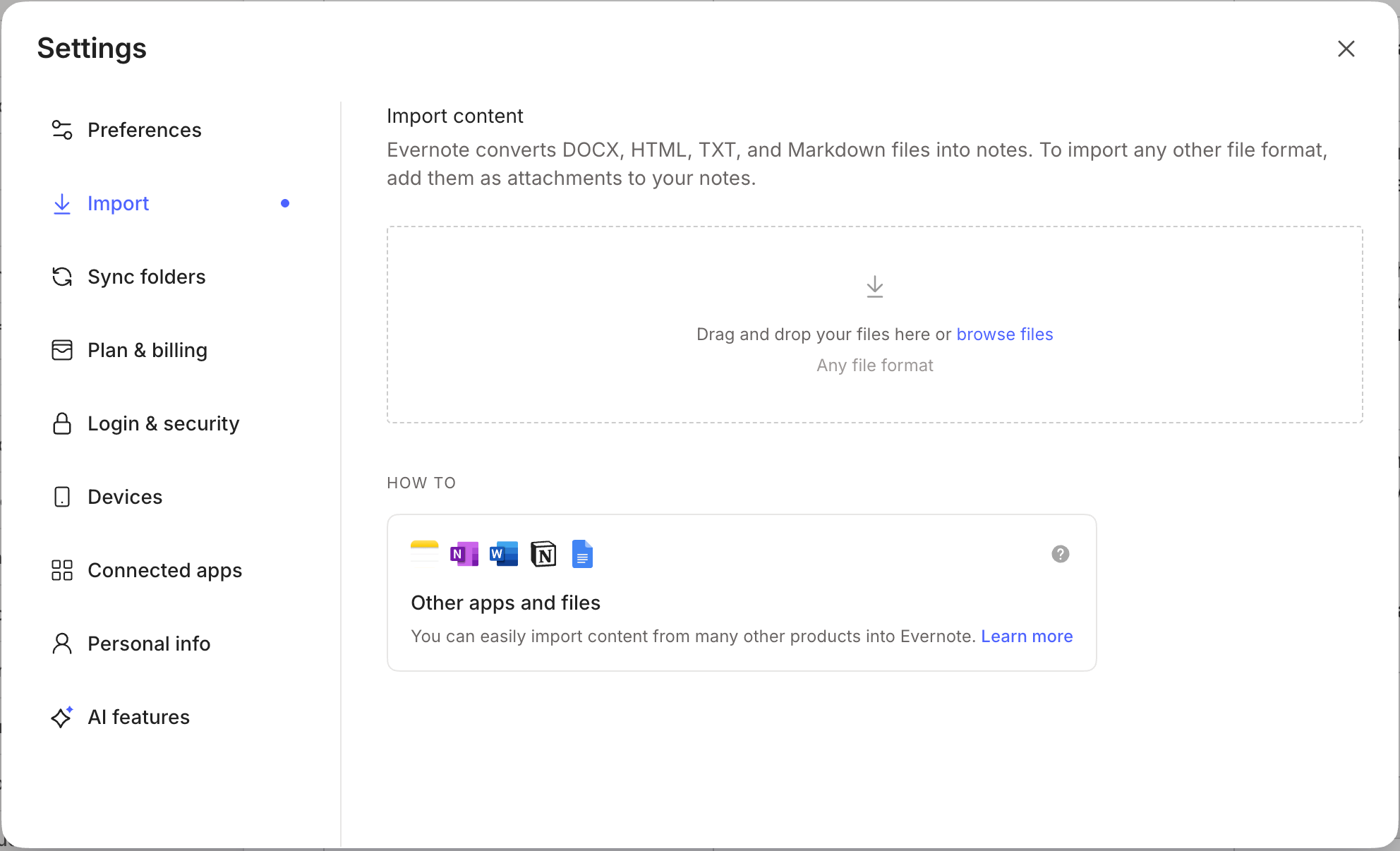
Open the Evernote desktop app and go to Settings → Import. You'll see a simple drag-and-drop area where you can upload files from your computer.
That's it. No plugins, no extensions, no third-party tools. Just add your files.
The Key Distinction: Converted Notes vs. Attachments
This is an important nuance to understand.
When you import a file through Settings → Import, Evernote looks at the file format and decides how to handle it:
These formats get converted into editable Evernote notes:
.docx — Microsoft Word documents
.html — Web pages saved as HTML files
.txt — Plain text files (from Notepad, TextEdit, etc.)
.md — Markdown files (from writing apps, dev tools, text editors)
Everything else — PDFs, images, spreadsheets, and any other format — gets saved as an attachment inside a new note.
Why does this matter? A converted note becomes a full Evernote note. You can edit it, format it, tag it, and AI Assistant and Semantic Search can easily read it.
An attachment, on the other hand, is a file sitting inside a note. It's stored, but it's not the same thing – although AI Assistant and Semantic Search can still work with the content inside several attachment types.
If you've ever dragged a Word doc directly into your note list, you may have noticed it lands as an attachment. The Import tool is how you get that same document turned into an actual note instead.
🧠 Academy Members: Get the full walkthrough of the Import feature — including live demos of each file format, the difference between importing and attaching, and tips for handling large migrations — in the Feature Training: Import Content.
Where to Start
You don't need to migrate everything at once. Think about one app where you know useful content is sitting — maybe it's a handful of Google Docs from a past project, or some notes in Apple Notes that you keep meaning to move. Export five or ten of them in a supported format, drag them into Evernote's Import tool, and see how they look as real notes.
Also worth noting — importing a file as an editable note is just one option. Sync Folders, which we covered last week, is another. Both are powerful capture tools, and now you have both in your toolkit. The mark of Evernote fluency is knowing which one fits your workflow — and that's exactly the kind of thing we dig into inside the Academy.
Cheers to your productivity –
Stacey

Subscribe to auto-receive my next tip!
No fluff. Just practical, immediately actionable advice from someone who's been teaching Evernote mastery for over a decade. Sent every Monday, for free.