
Evernote's AI features are all on by default
September 14 2026 | Issue 112 | Link to this issue | Subscribe
Hi Reader –
AI innovation has been the main Evernote story of 2026. We started the year with v11, the grand kick-off that brought AI Transcription, Semantic Search, and the AI Assistant. That was January.
The AI features haven't stopped since. They've grown enough that Evernote built a place to manage them – a dedicated AI section in Settings, with a Features tab that puts each AI capability in your account on one screen.
Each feature is optional. Some process entirely inside Evernote, others hand data to a third-party vendor, and the description under each toggle tells you which. You can shut them all off with one switch, or go feature by feature.
Have you reviewed the panel lately?
How to Access the AI Features Panel
The panel is found in your user settings.
On desktop and web, navigate from your account to Settings → AI → Features.
On mobile, go to your account avatar and tap Settings -> AI Features.
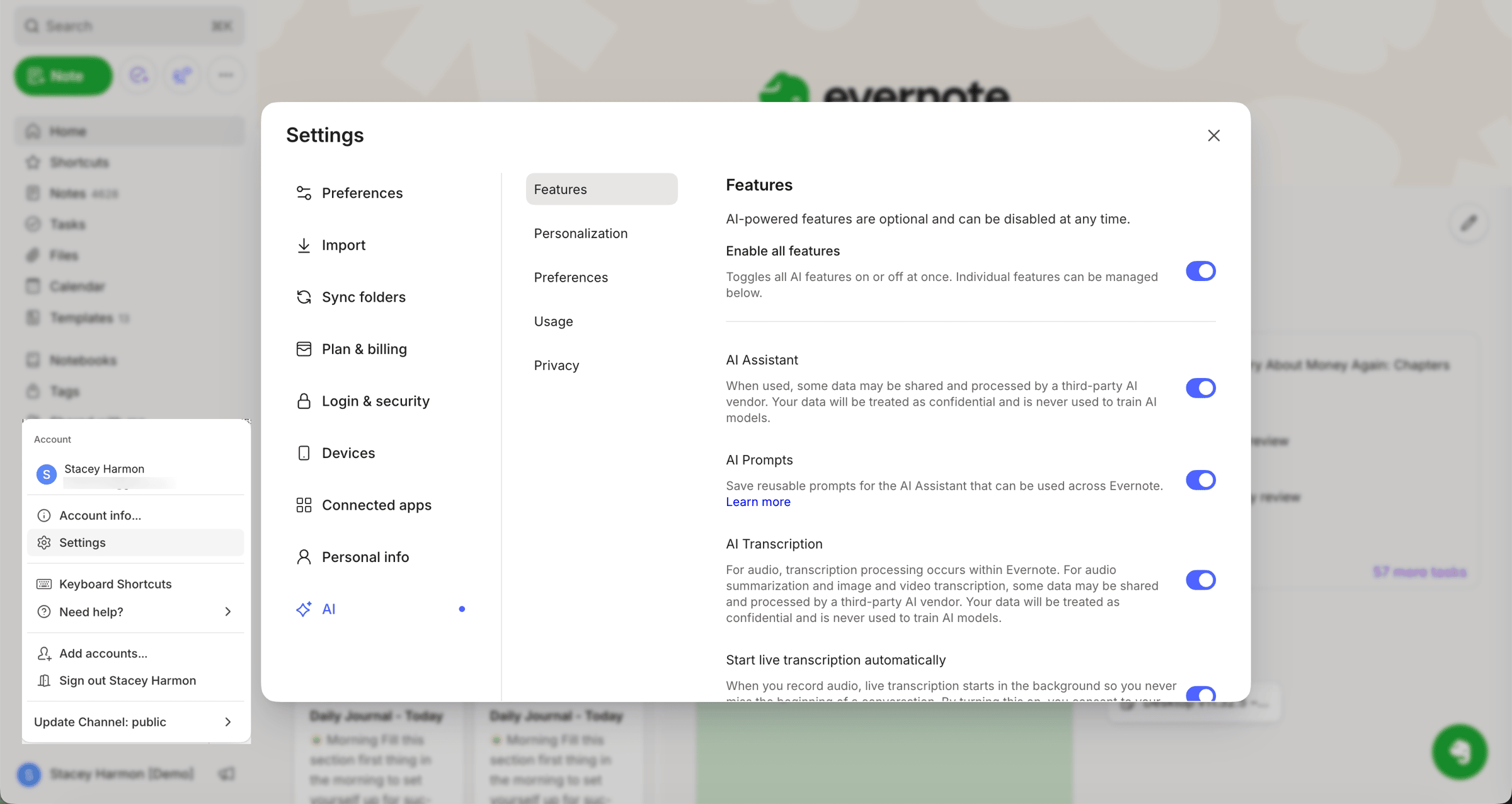
Tour of the AI Features Panel
The first toggle puts you in control of AI in your account.
Enable all features:
This is the global switch – off means off, across the board.
Below it, each feature has its own toggle, so you can keep Semantic Search on and turn the AI Assistant off, or any other combination you want.
Feature descriptions:
The text description of each feature clarifies where the processing happens.
AI Title Suggestion, AI Tag Suggestions, Semantic Search, and AI Image Captioning are all explicitly described as processing within Evernote, with no data sent to third parties.
The AI Assistant and parts of AI Transcription share some data with a third-party AI vendor.
Dictation and live transcription route audio to a speech-to-text provider.
Every description also states that your data is never used to train AI models. Review each description then toggle features on or off to suit your comfort level with AI data processing.
There are eight current features, many of which I've already covered in this newsletter. Here's an overview:
AI Assistant: the chat interface for engaging with your notes. I introduced it when v11 arrived in January.
AI Prompts: saved, reusable prompts for the Assistant, available across Evernote.
AI Transcription: audio, image, and video. I covered the feature back when it was first released. It's evolved a lot since then, but you can get the gist here.
Start live transcription automatically: have transcription begin the moment you record, so you never miss the top of a conversation. I love this feature and discussed it in July.
Dictation: speech-to-text directly in the note editor. This is an insert menu option.
AI Title Suggestion: tied to the titling habit I teach.
Semantic Search: meaning-based search, one of Evernote's four search methods.
AI Image Captioning: captions that make wordless photos findable. This was the topic of last week's issue.
🧠 Academy Members: Find all the details about this panel in the Evernote Settings Tutorials course. Each setting links to the related training, so you can go straight from a toggle you don't recognize to the training that explains it. View the lesson →
Review It This Week
Go to Settings → AI → Features and read the list. You'll do two things: see what's been added since the last time you looked, and make a deliberate decision about each one instead of inheriting the default.
Turn off anything you don't want running. Nothing here is set in stone. You can come back and switch it on again later if you change your mind.
Cheers to your productivity –
Stacey
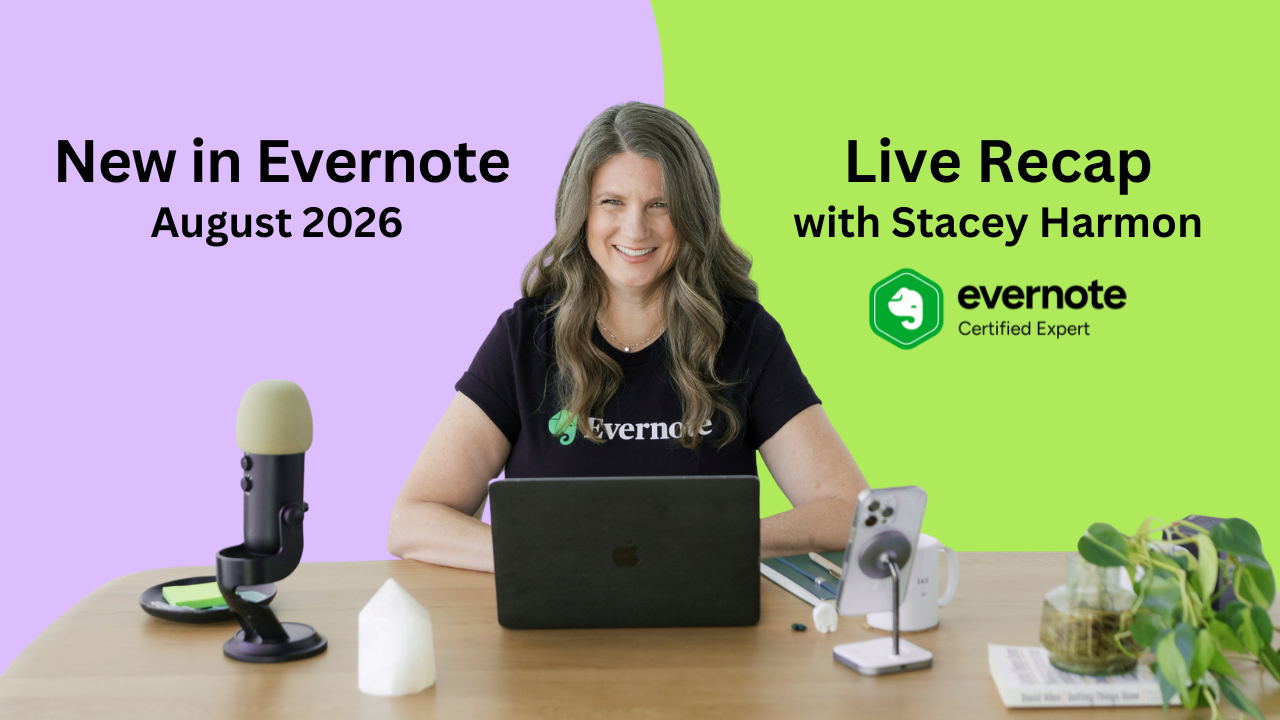
PS: I walked through everything Evernote shipped in August in a free YouTube training last week. If you'd rather see the newest features in action than read about them, catch the replay here →

Subscribe to auto-receive my next tip!
No fluff. Just practical, immediately actionable advice from someone who's been teaching Evernote mastery for over a decade. Sent every Monday, for free.