
I taught this PDF workaround for years
September 27 2026 | Issue 114 | Link to this issue | Subscribe
Hi Reader –
Double-click a PDF stored in a note. Let it open in Preview, or Edge, or whatever your computer hands you. Fix it there, save, and go back to Evernote.
That's the workaround for editing PDF's I've taught since 2009.
It solved real problems. Rotating a page that scanned sideways. Deleting a cover sheet you don't need. Grabbing the two pages of a forty-page statement your CPA is asking for. Historically, none of it could be handled where the file actually lived.
My workaround is now unnecessary.
Evernote rebuilt the PDF editor and shipped it to everyone on desktop in v11.34.8, with even more refinements in v11.35.6. Mobile is expected soon.
Those fixes now happen in the note, and there's no technique to learn. The old way asked you to keep track of things — which copy you had open, where your edits were saving, whether they made it back into Evernote. It wasn't always immediately intuitive, and it was one of the things I most often had to coach Academy members through. Now it works the way you'd expect it to.
Just click the Edit & Annotate button and robust options open up right inside Evernote.
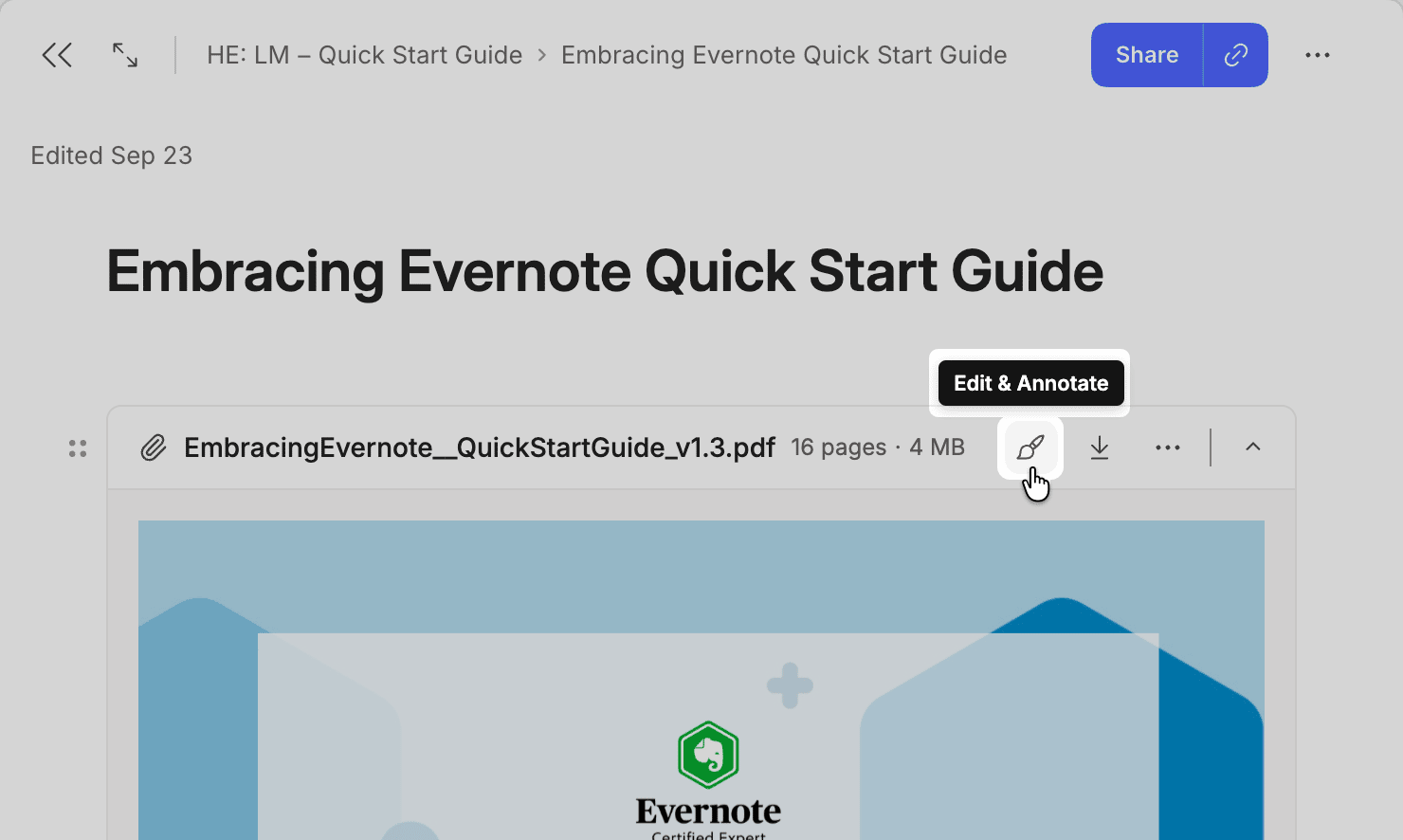
Less friction is the whole point. I've taught micro-efficiencies for years for exactly this reason: the seconds you spend on a step you repeat fifty times a week are where your day actually goes.
Before and After
Visually, this will feel familiar. Most of the annotation tools are the ones you already know, modernized rather than replaced. The clearest change is the page list running down the left side of the editor.
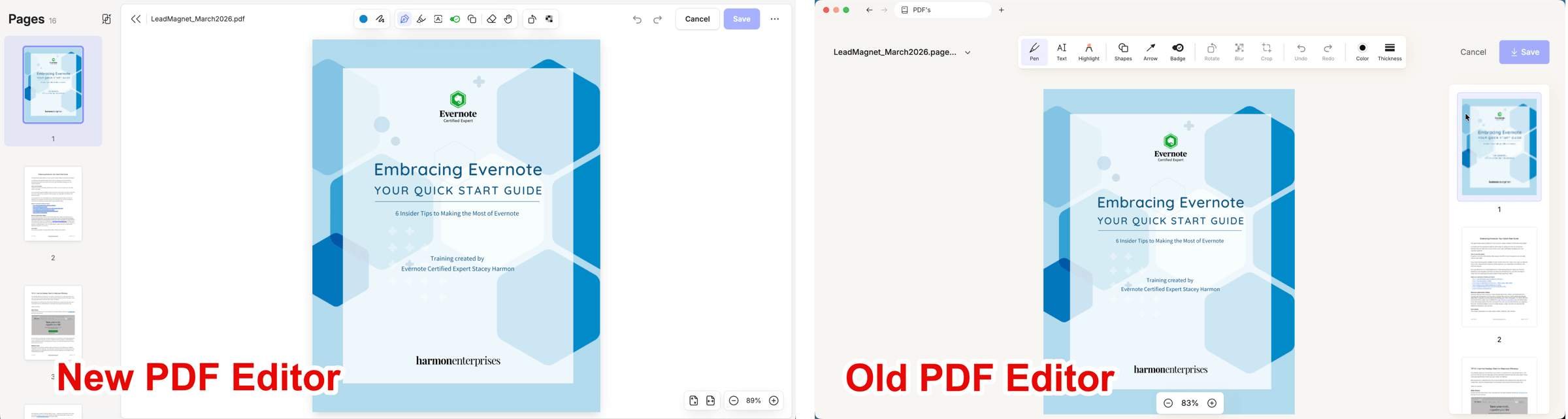
What You Can Do Now
Open a PDF in a note and click the annotation icon. A Pages panel opens alongside the document, and from it you can:
Jump to any page
Delete pages
Insert a blank page
Rearrange pages by dragging the thumbnails
Extract pages as a separate PDF
Add another PDF and merge the two together
The annotation tools sit across the top:
Select — move, recolor, resize, or delete an annotation you've already made
Pen and Highlighter
Eraser
Text — with font size, underline, and strikethrough
Arrow and Shapes — lines, squares, rounded squares, circles
Badge — stamps that carry a short label
Rotate
Pixelate — blur part of a page
If you want to dig in on your own, Evernote's help article on annotating images and PDFs has the full details — including which pieces are desktop-only and how password-protected PDFs behave.
🧠 Academy Members: Miss last week's live training on the new PDF Editor? Get a full walkthrough of exactly how it works in the Feature Training – The New PDF Editor replay.
Evernote's PDF Editor vs. Outside Apps
Before this change, modifying a PDF you kept in Evernote meant opening it somewhere else.
For the most part, you won't need to anymore. Between the Pages panel and the annotation tools, the editor covers most of what you'd actually do to a PDF on a day-to-day basis, and the reasons to open a third-party app go away.
There are still a couple of exceptions. If you need to sign a document, or type into a real form field rather than lay text on top of it, that's outside what Evernote's PDF editor does. You'll still need a robust third-party PDF app for those.
At least, that's the limitation today. Evernote shipped 115+ improvements in the first half of this year alone, and they do listen to user feedback, so you never know. If signing PDFs is what you want, submit it through the Suggest new features form — I walked through exactly how in Issue 107.
Why PDFs Belong in Evernote
PDFs were already worth keeping here. Evernote indexes the text inside them, so searching a phrase buried on page 31 of a scanned contract finds the note and takes you to it. You can control how the file sits in the note, too — a full multi-page view when you want to read it, a compact attachment when you'd rather not scroll past it.
Now you can reorganize and mark up that same file without opening anything else.
Storing it, finding it, and working on it all happen in the one app you already keep everything else in.
Evernote just keeps getting better –
Stacey

Subscribe to auto-receive my next tip!
No fluff. Just practical, immediately actionable advice from someone who's been teaching Evernote mastery for over a decade. Sent every Monday, for free.