
Which search option to use when 🔎
February 16 2026 | Issue 83 | Link to this issue | Subscribe
Hi Reader –
Ever find yourself wondering which of Evernote's search features you should use to find what you’re looking for?
You're not alone.
With all the search improvements Evernote's rolled out recently — plus the addition of AI-powered features — it's easy to feel confused about which search tool to use when.
Evernote search has always been powerful. But knowing what to search and where is a skill.
And with multiple search options now available, understanding the difference between them will help you find what you need faster.
Here's what you need to know.
Your Search Options
Evernote offers several ways to search your notes, and each feature has different strengths:
Standard Search Box: The search bar you've always used, now with enhanced features
Switch to…: A power user shortcut for lightning-fast navigation
Semantic Search: AI that understands meaning, not just keywords
AI Assistant: Your research partner that combines search with iterative chat
Each serves a different purpose. So let's discuss when to use each one.
Standard Search: Your Keyword Powerhouse
This is the search box you've been using for years, and it's still incredibly powerful.
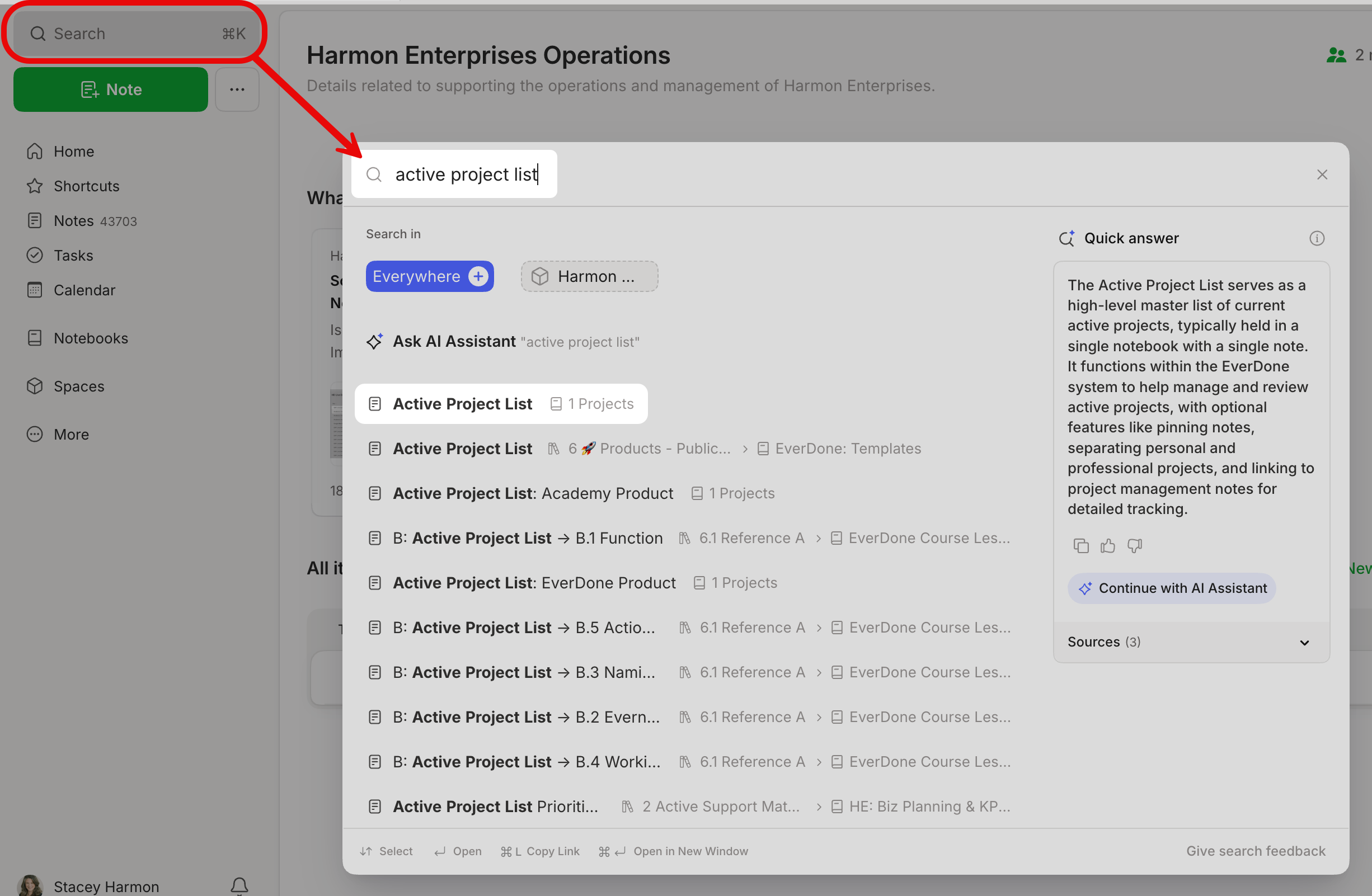
Standard search relies on OCR (optical character recognition) indexing, which means Evernote reads and indexes:
Typed text in your notes
Text in images
Handwritten notes in images
Text in PDFs
Content in some third-party embedded files (.doc, .xls, etc.)
File names of linked files (like Google Doc titles)
Last year, Evernote improved the standard search experience with:
Recent searches (quick access to your last queries)
Live filtered search results (results update as you type)
Keyboard commands at the bottom for power users
When to use it: When you know specific keywords, phrases, or details you're looking for.
To set yourself up for success, add descriptive keywords to your notes when you create them. The better your keywords, the easier standard search works.
🧠 Academy Members: Master the enhanced search experience in the Feature Training: Evernote's Search Modal, where we walk through all the improvements and best practices.
Switch to…: The Speed Demon
Think of Switch to.. (also known as Jump or Quick Switcher) as turbo-charged navigation for power users.
It's technically a type of search, but it's designed for one thing: getting you from Point A to Point B in your account fast.
How to activate it (available on desktop client only):
Mac: Cmd + J
Windows: Ctrl + Q
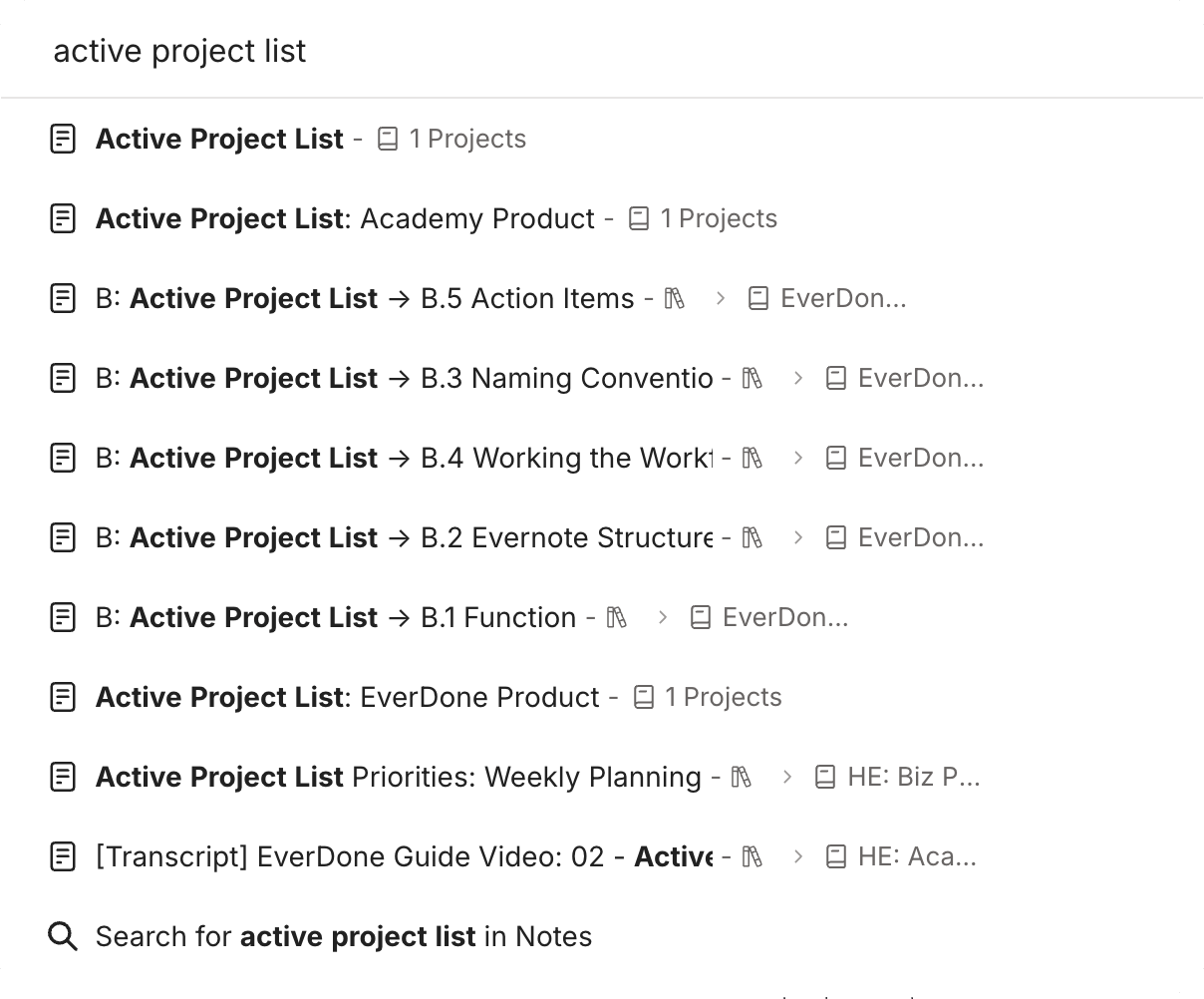
When to use it: When you’re using Evernote Desktop and need to jump quickly to a specific note, notebook, stack, space or tag without leaving your keyboard.
Quick Switcher prioritizes note titles and notebook names, so you can navigate your entire account without taking your hands off the keyboard.
To set yourself up for success, use clear, descriptive titles for your notes and notebooks. Quick Switcher relies on keyword matching, so thoughtful titles make a difference.
🧠 Academy Members: Take a deep dive into the Switch to... command and learn why it's one of the most beloved power-user features in this Masterclass.
Semantic Search: Understanding Meaning, Not Just Words
Semantic Search is powered by AI and goes beyond simple keyword matching. Instead of just looking for exact words, it understands the meaning behind your query.
This search happens automatically in the Standard Search box through Evernote's "embedding" process — an new indexing feature that maps meaning to your notes on top of traditional OCR indexing.
Semantic search results appear as "Smart Results" or "Quick Answers" in your search results list.
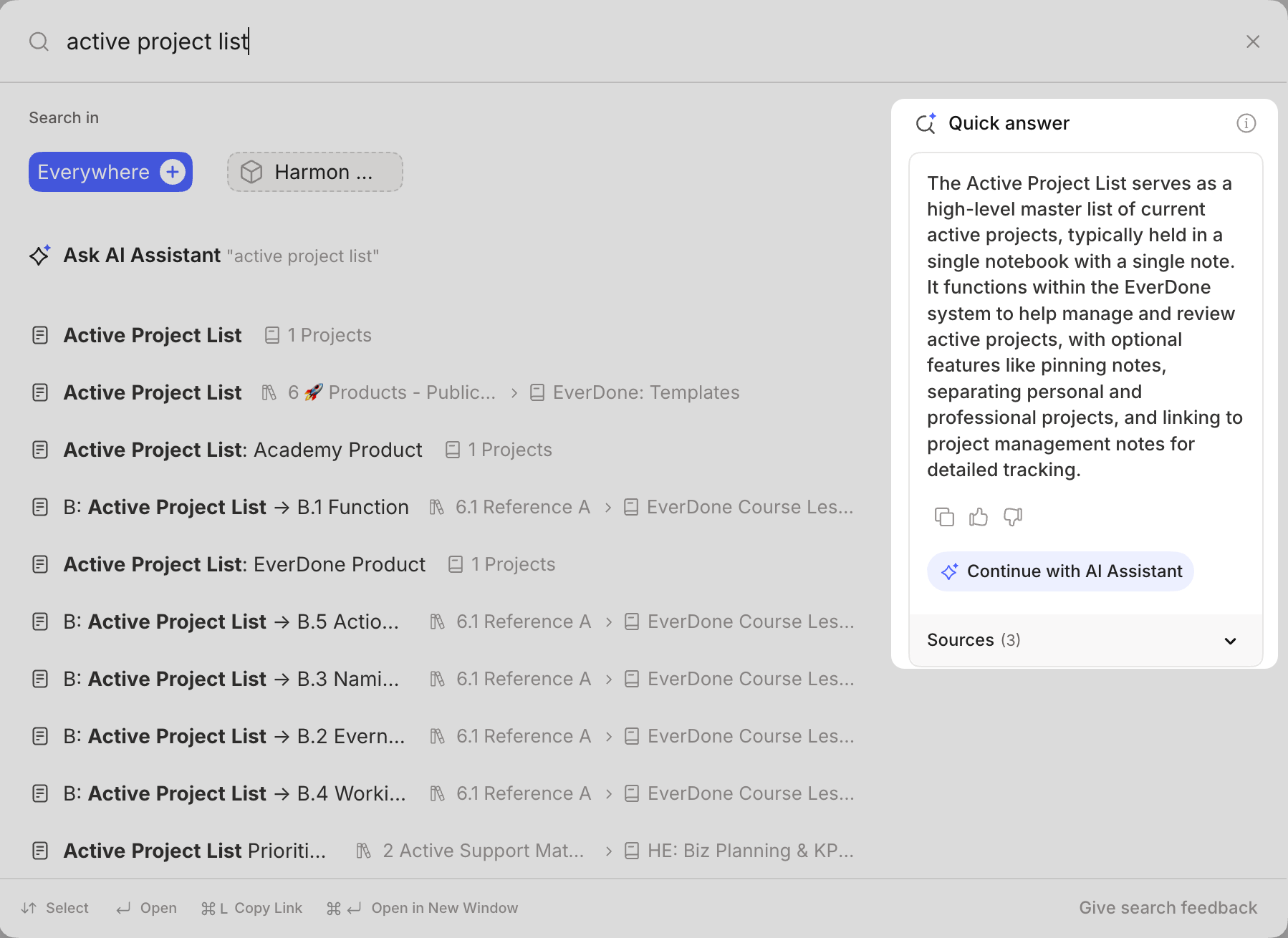
When to use it: When you can't remember the exact words but know the concept you're looking for.
For example, you might search for "healthy dinner ideas" and get results about "nutritious recipes" or "clean eating meals" – even if those exact words don't appear in your notes.
🧠 Academy Members: Get the full breakdown of how Semantic Search works — and tips for getting the best results — in this Feature Training: Semantic Search.
AI Assistant: Search Meets Research
AI Assistant takes search to the next level by combining Evernote's OCR, embedding technology, and OpenAI to deliver conversational, iterative search results.
AI Assistant doesn't just find notes. It can help you connect ideas, summarize information across multiple notes, and even conduct web research if needed.
You can access this type of search from the Standard Search bar via the AI chat drawer on the right side of the desktop interface.
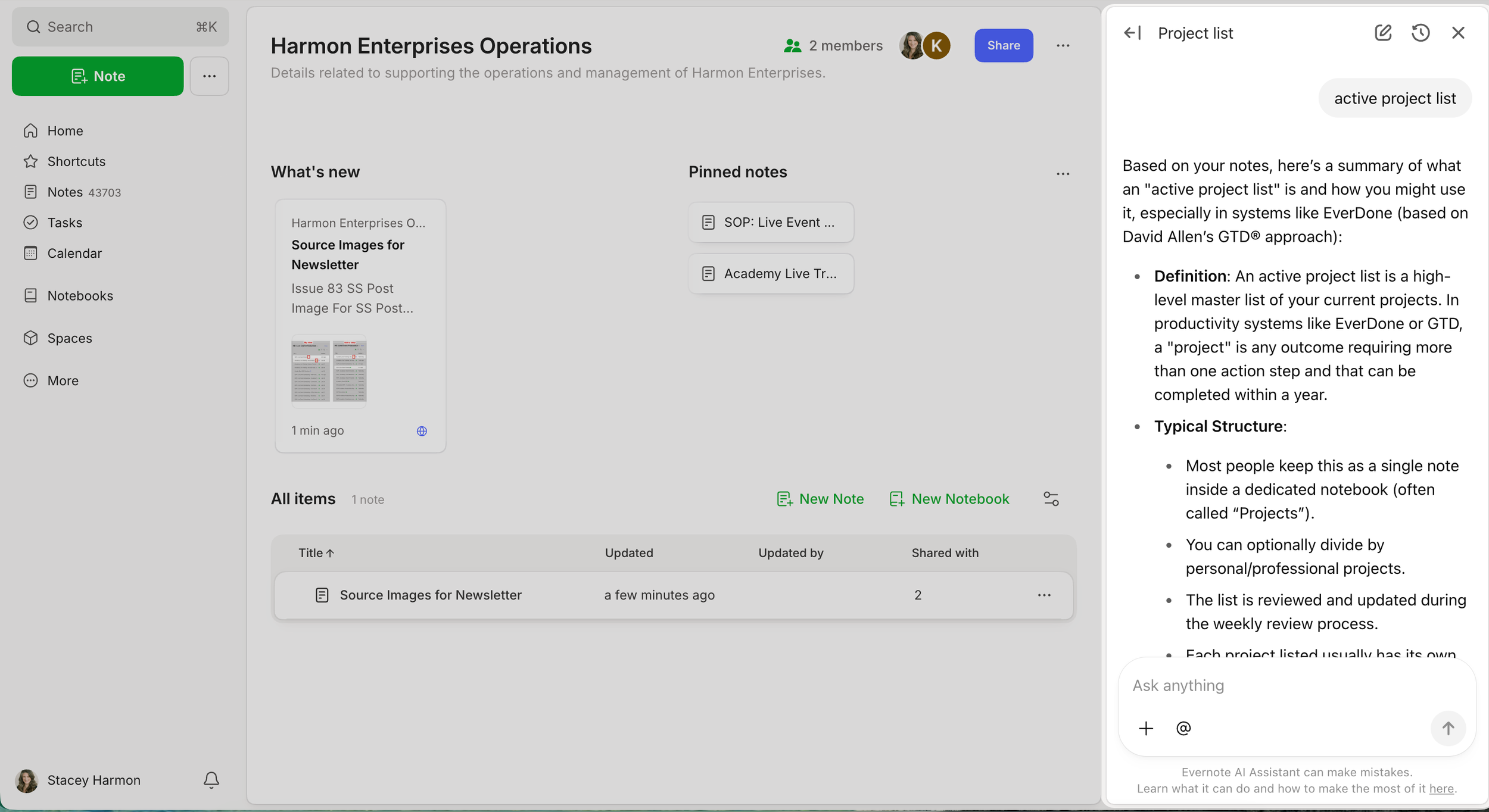
Note: AI Assistant isn't yet available on mobile.
When to use it: When you need more than just finding a note — when you want to explore, synthesize, or research across multiple notes and the web.
🧠 Academy Members: Learn how to leverage AI-powered search features in the Masterclass: AI-Powered Search, including prompt ideas and powerful use cases.
Matching Search to Your Goal
Here's the quick reference guide for when to use each search type:
Standard Search → You know specific keywords or phrases
Switch to… → You want to navigate quickly to a note or location in your account
Semantic Search → You remember the concept but not the exact words
AI Assistant → You need to research, synthesize, or explore across multiple notes and/or the Internet
Understanding Evernote's search options isn't about memorizing features. It's about matching the right tool to what you're trying to accomplish.
Start by getting comfortable with Standard Search and Quick Switcher. As you use Evernote more, you'll naturally discover moments when Semantic Search or AI Assistant better serves your needs.
The goal is finding what you need when you need it — and now you know exactly which search tool will get you there fastest.
Cheers to your productivity —
Stacey

Subscribe to auto-receive my next tip!
No fluff. Just practical, immediately actionable advice from someone who's been teaching Evernote mastery for over a decade. Sent every Monday, for free.