
The return of Evernote Tabs
April 6 2026 | Issue 90 | Link to this issue | Subscribe
Hi Reader –
Tabs have arrived in Evernote Desktop. 🎉
If you've a longtime Evernote user, you might remember tabs from the legacy days on Mac. It was a feature Mac users loved (and also one that Windows users never had). When v10 launched, tabs were dropped to keep things consistent across platforms.
Now, years later, they're back in v11 — and this time, available on both Mac and Windows.
Note: If you aren't seeing the tabs feature in your account, update to the latest desktop version.
(If you've been following our capture series — don't worry, we'll pick that back up next week. I wanted to share this new feature this while it's fresh.)
What Are Tabs?
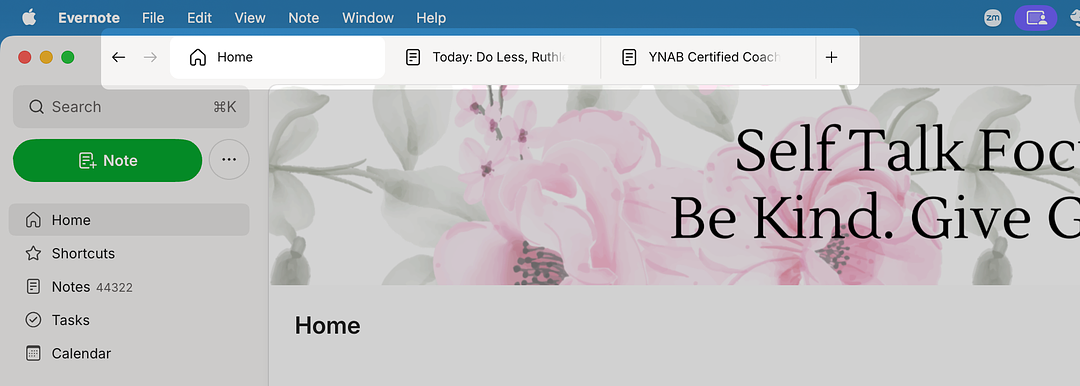
They work just like they do in your browser. Tabs at the top of the app let you quickly navigate to the details open in that tab.
Instead of navigating away from a note every time you need to check something else, you can open a new tab and keep multiple things accessible at once — notes, notebooks, tasks, your calendar, home — all without losing your place.
Set Your Default Tab Behavior
One setting worth visiting right away is your preferences for when you open a new tab.
Settings → Preferences → Application → When opening a new tab
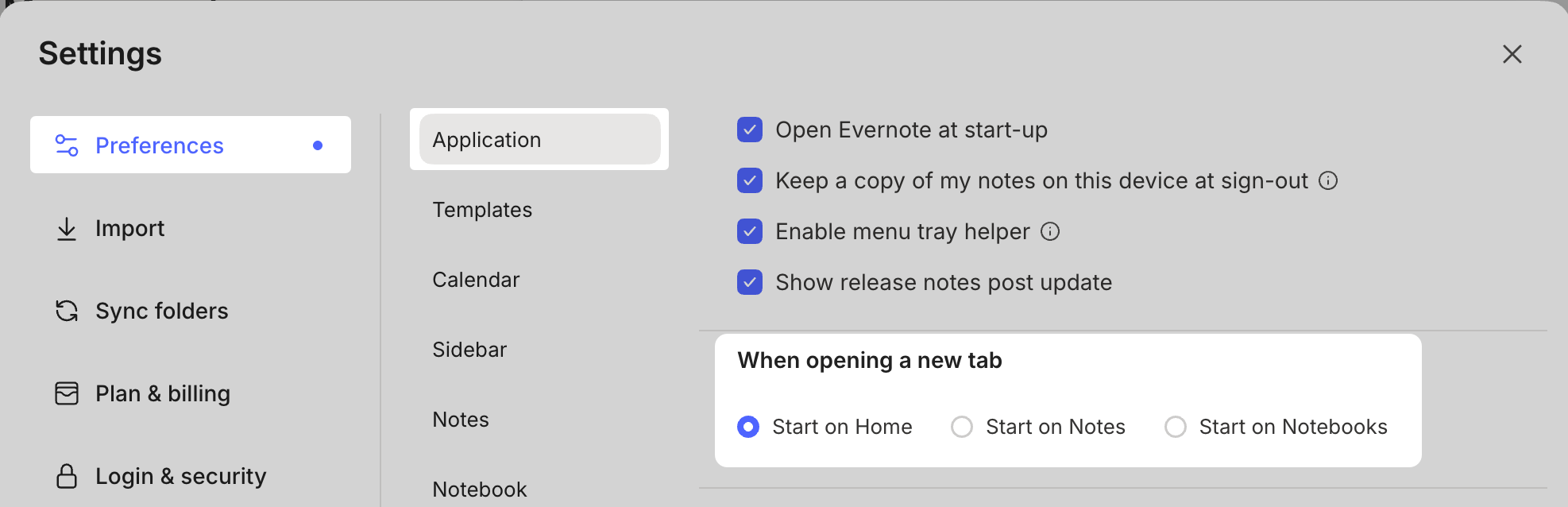
You can choose whether a new tab defaults to Home, Notes, or Notebooks — whichever makes the most sense for how you work.
How to Open a New Tab
There are a few ways to create tabs:
Click the + button at the top of the tab bar to open a new tab.
Right-click a note from the note list and select "Open in New Tab."
Use the More actions ... menu inside the note editor, select "Open in New Tab."
Right-click items in the sidebar to open certain views in a new tab.
From there, you can navigate to wherever you need to go.
In addition, there are a few tab keyboard shortcuts worth learning for easy tab management. Check the keyboard shortcuts menu to find the commands for your OS.
🧠 Academy Members: Get a full walkthrough of how Tabs work including workflow ideas and keyboard shortcuts in the new tutorial: Feature Training: Tabs.
A Few Workflow Ideas to Get You Started
The real power of Tabs isn't just having multiple things open — it's being intentional about what you keep visible so you can work efficiently.
You can drag and drop tabs to reorder them, allowing you to arrange them in a way that reflects your priorities for the day.
Here are some ideas:
Project workspace: Open notes related to a project in separate tabs and reorder them by priority. Everything you need, right at the top.
Tasks at a glance: Keep your Tasks view open in a dedicated tab on the far left for quick access throughout the day without navigating away from your work.
Meeting workflow: Open your reference notes in tabs, then start a voice recording in your main meeting note. You can browse other tabs while the recording continues — and a small pulsing red dot on the active tab reminds you that recording is still in progress (Academy members are loving this tabs feature!)
Research mode: Work across multiple reference notes side by side while writing in another tab.
Evernote has also hinted that a few more features are on the backlog for tabs, so I expect there is more to come. Stay tuned!
Cheers to your productivity —
Stacey

Subscribe to auto-receive my next tip!
No fluff. Just practical, immediately actionable advice from someone who's been teaching Evernote mastery for over a decade. Sent every Monday, for free.