
Files in Evernote: Demystified
January 19 2026 | Issue 79 | Link to this issue | Subscribe
Hi Reader –
During last month’s Starting Fresh with Evernote challenge, the most common questions I got were around working with documents in Evernote.
Questions like: How do I attach a file? What’s the difference between attaching and importing? Why can’t I open this document on my phone?
If you’ve ever been confused by how Evernote handles files, you’re not alone. The terminology trips some people up. So let’s demystify it.
Files Are Just One Element of a Note
Here's what users need to understand: a file is just one element of a note, not a note in itself.
Think about what a note can contain. You can have text in a note. You can have a table. An audio recording. An image. A checkbox. These are all elements you can insert into a note.
A file — whether it's a PDF, a Word doc, an Excel spreadsheet, or any other document — is simply another element you can insert into a note. It sits alongside your text, tables, and images as one piece of a larger container.
This is what makes Evernote such a powerful project manager. A single note can hold your project overview text, a table tracking milestones, and the actual documents you're working with — all in one place.
How to Add a File to a Note
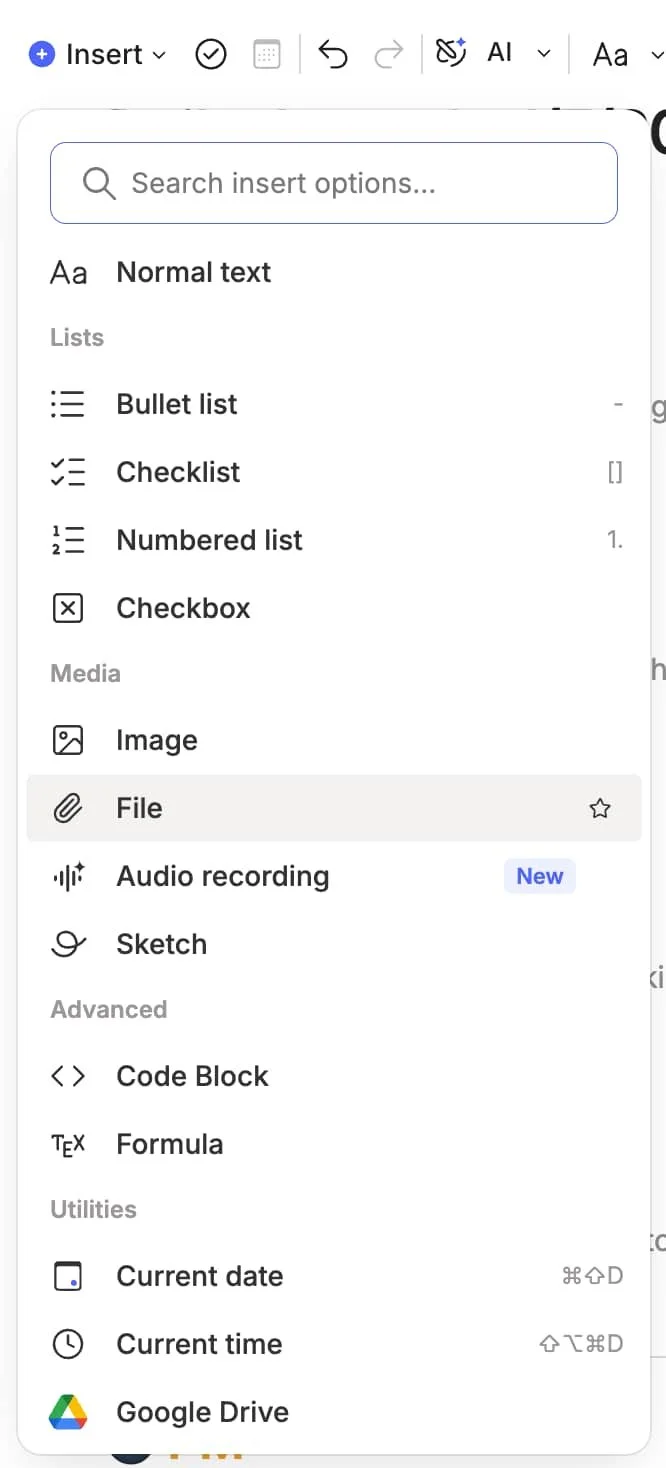
Adding a file to a note is straightforward. Open an existing note or create a new one. Then you have a few different options:
Click the blue plus sign icon in the note editor and choose “File.”
Type “/” and select Attachment.
Or you can simply drag and drop files directly into your note.
Any type of file can be added to a note, as long as the total size of the note (with attachments included) doesn’t exceed your account’s note size limit – 200MB per note.
The “Can I Open It?” Reality Check
Here's something that catches people off guard: just because a file lives in Evernote doesn't mean you can always open it.
To open an attached file, you need the appropriate application on the device you're using.
For example, you won't be able to open an Excel spreadsheet that's attached to a note if you don't have Excel (or a compatible app) on the device you're viewing the note on.
The file is still stored in Evernote. It syncs across all your devices. But opening it requires the right software.
Attaching vs. Importing: The Vocabulary That Trips People Up
Evernote uses the word "import" in two different contexts, and this is where the confusion often starts.
Import #1: Importing Notes (ENEX files)
When you go to File > Import, you're importing notes into Evernote. These are .enex files — Evernote's export format for notes.
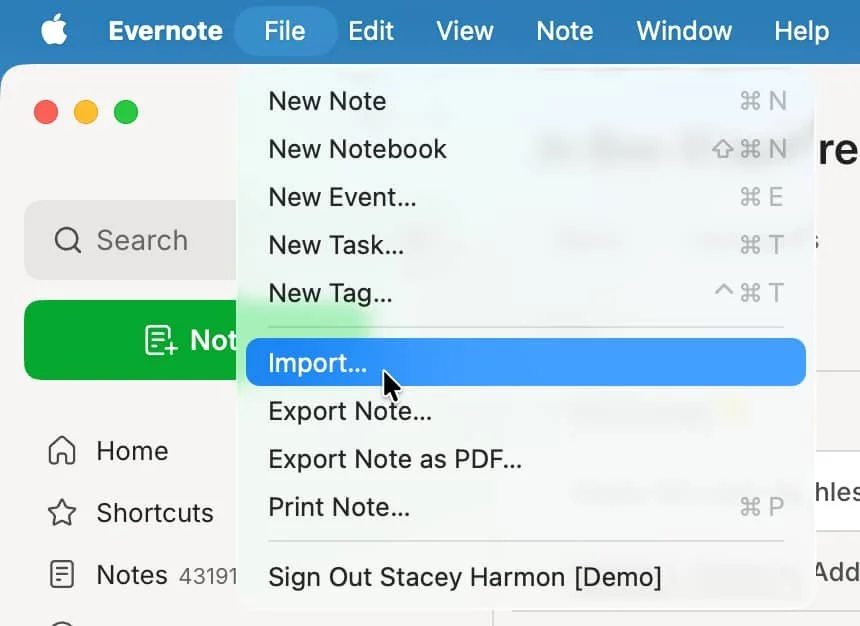
This function is used when you merge accounts (export notes from one account, import them into another) or restore previously exported notes. The result? New notes are created in your account.
Import #2: Importing Files (via Settings)
Evernote also has an Import section in Settings where you can import files. But here's the key difference: certain file types get converted into editable notes.
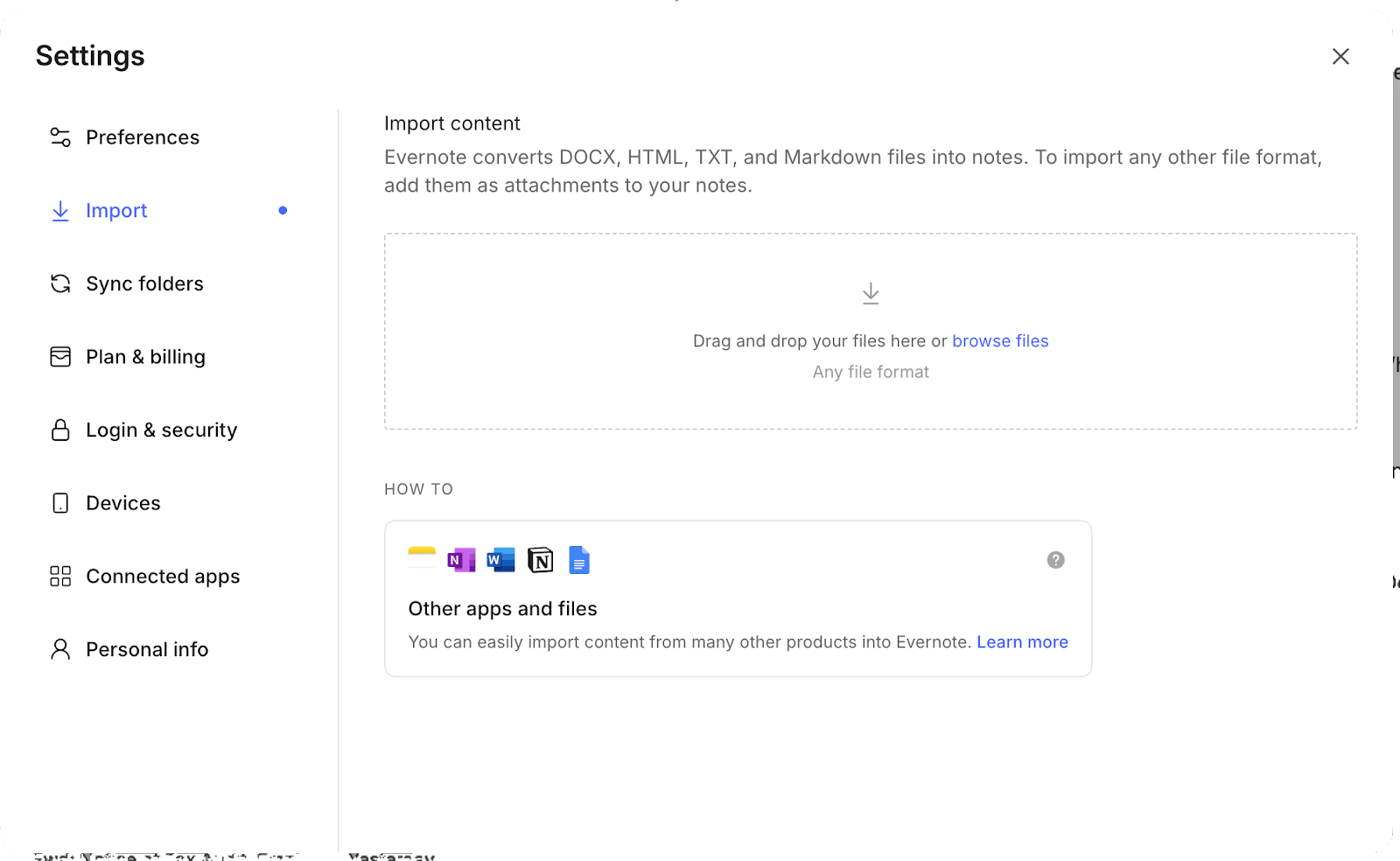
When you import select files types (.docs, .html, .txt, and Markdown files) through this Import section, Evernote converts them into editable note content — not attachments. All other file formats get added as attachments to notes.
However, if you drag and drop a file directly into your note list (rather than using the Import section), it becomes an attachment inside a new note — the file itself, not converted content.
The takeaway: How you add a file to Evernote determines what happens to it. (And vocabulary matters when talking about Evernote features.)
🧠 Academy Members: Deepen your understanding of how to attach and work with documents in Evernote in the Academy training, Masterclass: Documents and Evernote.
Start With the Foundations
Understanding that files are just one element of a note is foundational to using Evernote effectively.
Once this clicks, you'll start to see possibilities. A project note that contains your timeline, your meeting notes, and the actual deliverables. A recipe note with the source article attached alongside your personal modifications. A reference note for a purchase with the receipt, warranty, and manual all in one place.
Next week, we'll go deeper into where files should live — inside Evernote or linked from outside — and how to make that decision based on your workflow needs.
Cheers to your productivity —
Stacey

Subscribe to auto-receive my next tip!
No fluff. Just practical, immediately actionable advice from someone who's been teaching Evernote mastery for over a decade. Sent every Monday, for free.