
My favorite Evernote feature just got better
January 12 2026 | Issue 78 | Link to this issue | Subscribe
Hi Reader –
Note links have long been my favorite Evernote feature.
When I first discovered that you could link notes together, it fundamentally changed my understanding of what was possible in Evernote. Suddenly, I wasn't just organizing notes into notebooks — I was building a web of interconnected knowledge.
It's always been a powerful feature, and it's often the one that helps people who use Evernote become power users.
And now? They've gotten even better.
A Focused Effort on Links
Since Bending Spoons took over Evernote, they've quietly been innovating on links as part of a larger "link unification" effort. You may not have noticed all the improvements, but they've been adding up:
Smart note links (no more confusing "in-app" vs "external" links)
Revamped public share links
Table of Contents option (note links inside the same note)
Anchor links to jump to specific sections
Expanded user preferences for link display
In December 2025, we got what might be my favorite link innovation of all: Mentions.
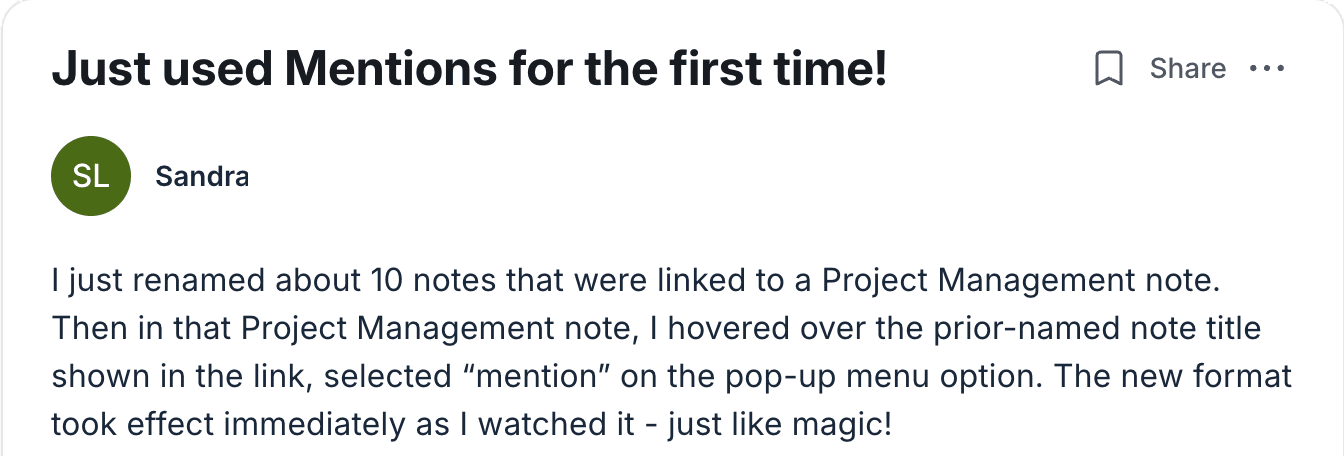
And Academy Members are excited about it too!
What Are Mentions?
Mentions are a new display option for internal Evernote note links. When you select the Mention view for a link, something magical happens: the link title automatically reflects the current title of the destination note — even if you change it later.
If you've ever used note links extensively, you know the frustration of renaming a note and having all your links to that note display the old title. With Mentions, that problem disappears.
This is especially useful for those of us who use note links to create dashboards and rosters that link to project notes — a common practice I teach inside the Academy.
For example, I recommend creating a Project Management note for every project that acts as your dashboard. You populate it with links to different notes representing relevant areas of the project you want to track. With Mentions, when you update a project note's title to reflect its current status, your dashboard link updates too.
🧠 Academy Members: Want to see Mentions in action? Check out this Mentions Feature Tour inside the Academy.
How to Enable Mentions
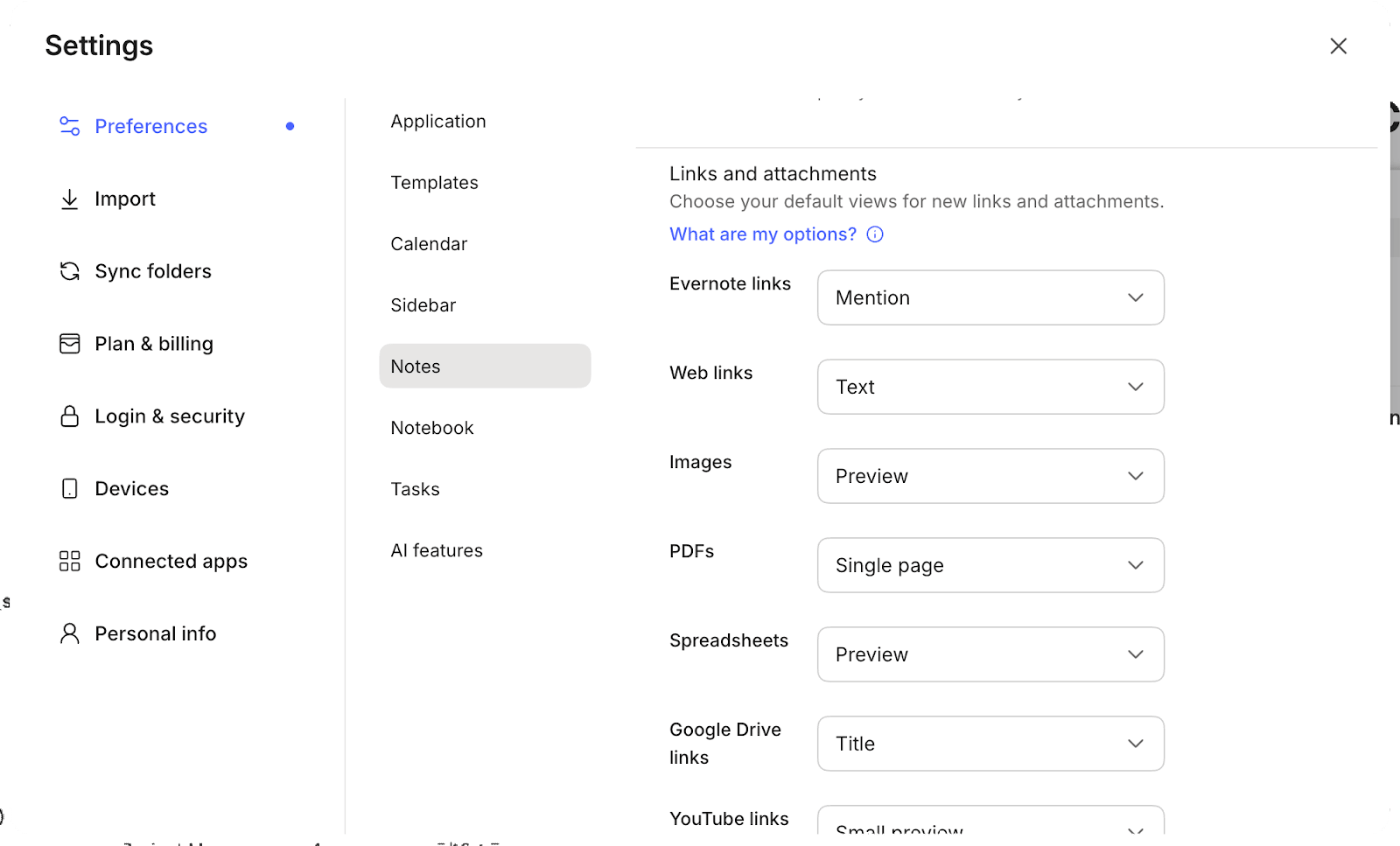
You can set your default link display preferences in Evernote's settings. What's nice is that you can choose different defaults for internal Evernote links and external web links.
My recommendation: Set internal links to Mentions (for auto-updating titles) and web links to Text (since web page titles often don't translate well to the Mention format).
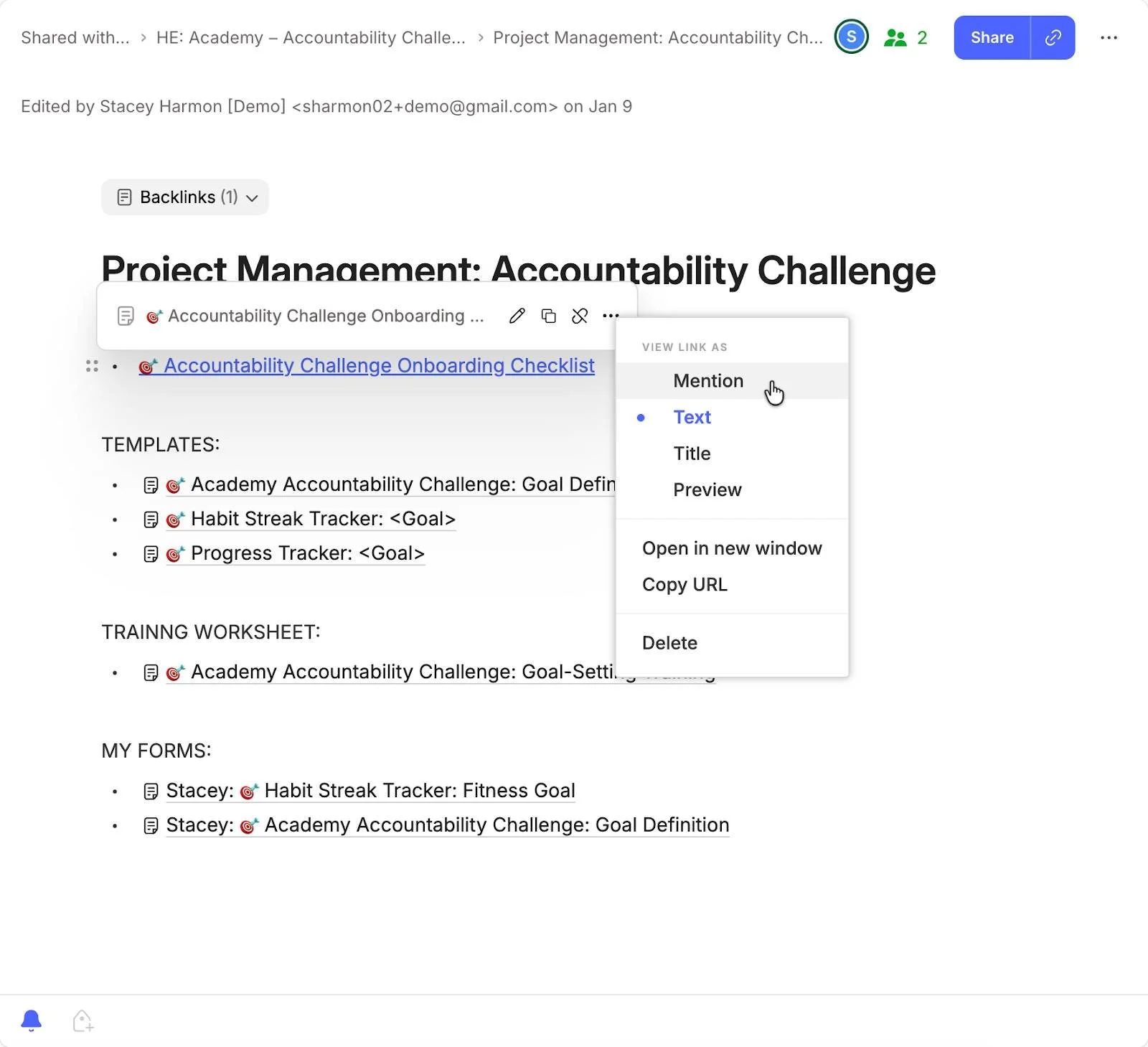
To change existing links to Mentions, simply hover over the link and select "Mention" from the pop-up options.
The Power of Connected Notes
If you haven't explored note links yet, now is the perfect time to start. They transform Evernote from a simple filing cabinet into a true second brain where ideas connect, and information flows naturally.
And with Mentions, maintaining those connections just got a whole lot easier.
Cheers to your productivity —
Stacey

Subscribe to auto-receive my next tip!
No fluff. Just practical, immediately actionable advice from someone who's been teaching Evernote mastery for over a decade. Sent every Monday, for free.