
8 Evernote Features That Eliminate Distractions
December 29 2025 | Issue 76 | Link to this issue | Subscribe
Hi Reader –
There’s a quote I come back to all the time from David Allen:
“You can do anything, but not everything.”
We all have the same 24 hours. The CEOs running billion-dollar companies, the parents juggling work and family, the students cramming for exams — everyone gets the same amount of time.
So why do some people seem to accomplish so much more than others?
It’s not about having more time. It’s about having more focus.
But focus isn’t just about habits and willpower. Your tools matter too.
And under Bending Spoons’ leadership, Evernote has been quietly building out an impressive collection of focus-enhancing features — many of which you might not even know exist.
8 Ways to Create Focus in Evernote
Here are 8 ways to create a distraction-free environment inside Evernote:
1. Hide the Toolbar (New!)
This is brand new as of December 2025.
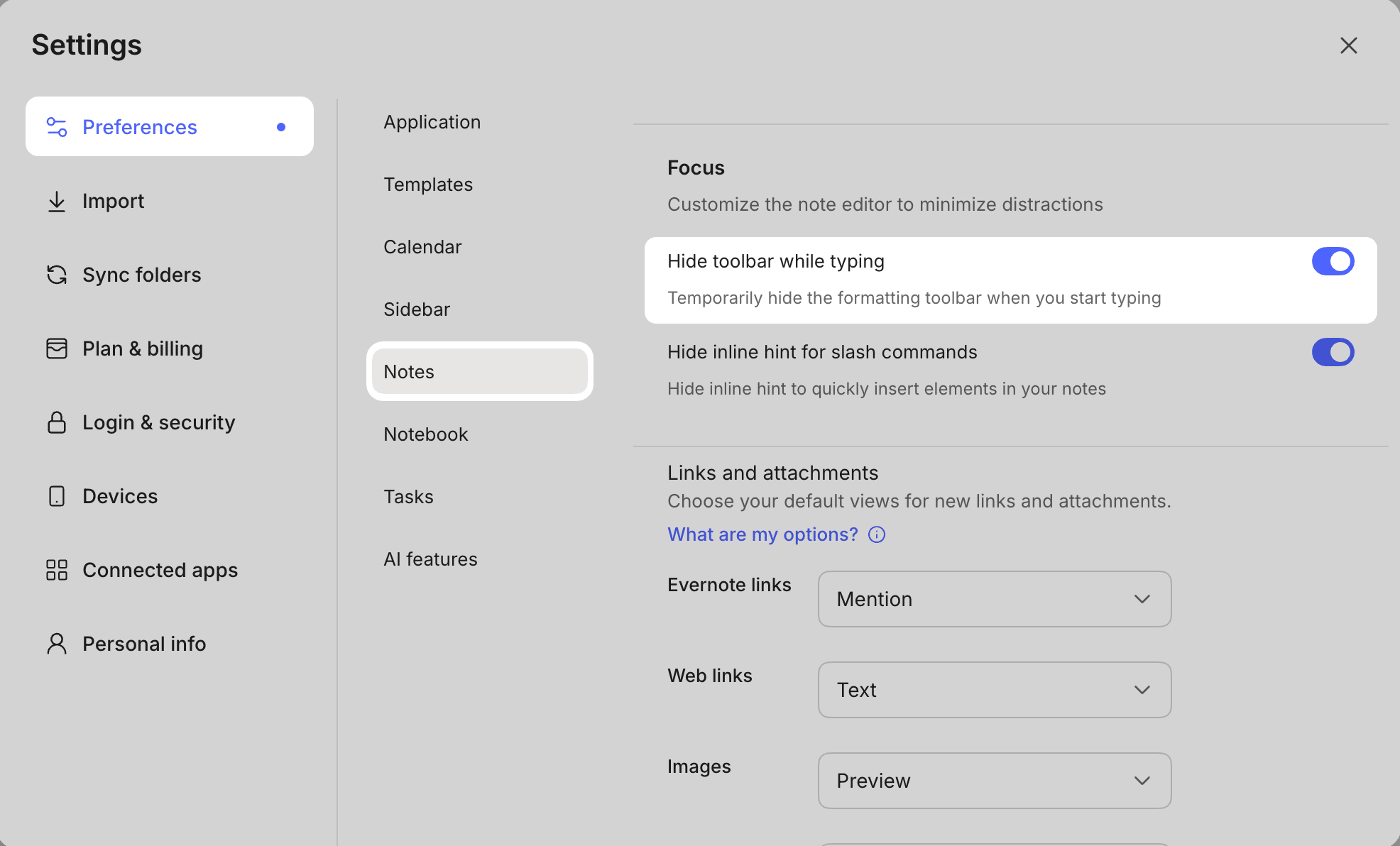
You can now hide the note editor toolbar completely, giving you a cleaner writing space with fewer visual distractions. When you’re in deep writing mode and don’t need formatting options staring at you, this creates a calmer, more focused experience.
Find it in your settings under the Focus section. Toggle it on, and that toolbar disappears until you need it again.
2. Hide Inline Hints for Slash Commands
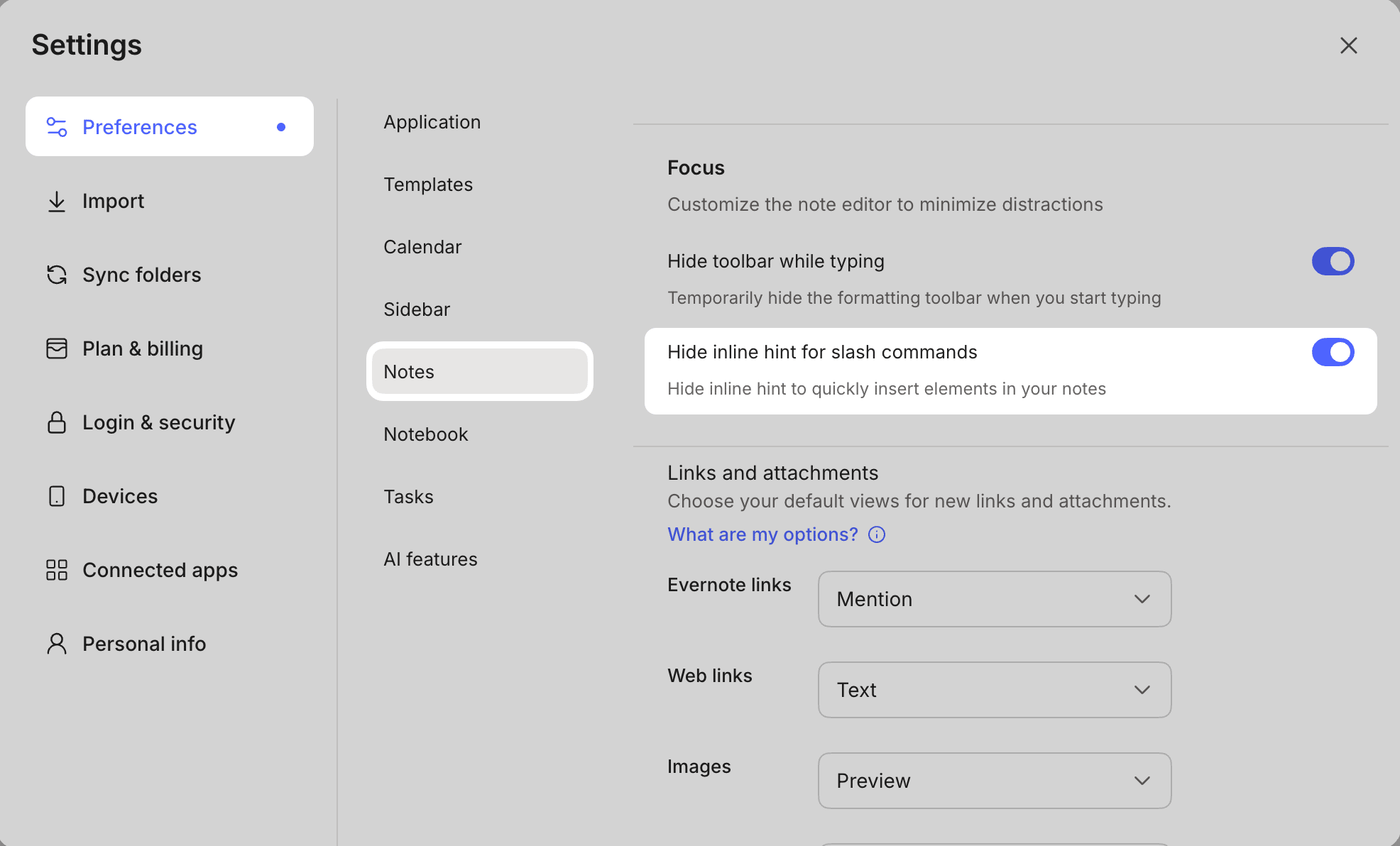
Speaking of visual clutter — have you noticed the little hints that pop up when you're working in a note? These slash command hints can be helpful when you're learning Evernote, but once you've got the basics down, they're just noise.
Turn them off by going to Settings → Focus → and selecting "Hide inline hint for slash commands."
Less visual distraction = more mental bandwidth for the work that matters.
3. Open Note in Its Own Window
When you're working on something important, the last thing you need is to see your entire note list beckoning you to check "just one more thing."
Right-click any note and select "Open in New Window.” This pops the note into its own dedicated window — separate from the main Evernote interface.
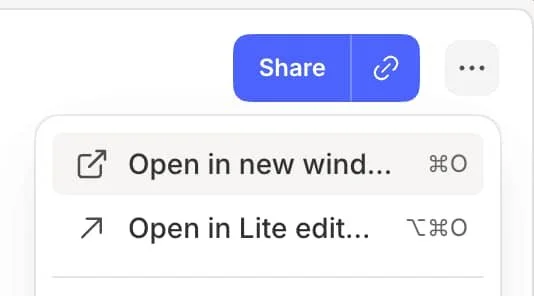
It's like giving that note its own private office. No sidebar. No note list. Just you and your content.
4. Expand Note to Hide the Note List
Don't want to open a separate window? You can also expand your current note to fill the screen.
Click the expand icon in the upper left of your note (or use Cmd+Opt+V on Mac / Ctrl+Alt+V on Windows). The note list slides away, leaving you with just your note and the sidebar.
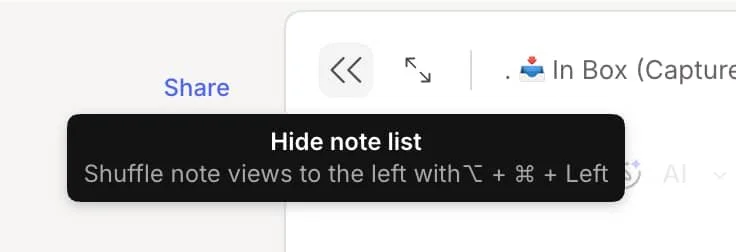
Want even more focus? Use the key command that shows upon hover to hide the sidebar too. Now you're in full-screen note mode — maximum writing real estate with minimum distractions.
If you enable dark mode, this creates a beautiful, distraction-free writing environment that's easy on the eyes.
5. Shortcuts for Instant Access
Focus isn't just about removing distractions — it's also about eliminating the friction that pulls you away from your work.
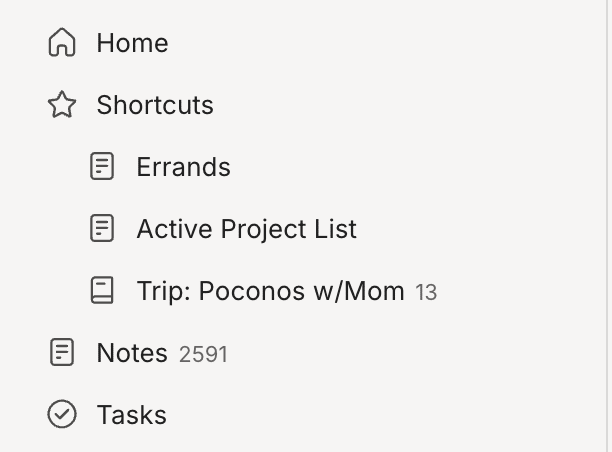
Every time you hunt for a note, you risk getting sidetracked. Shortcuts solve this by letting you bookmark your most important notes, notebooks, tags, and saved searches right in your sidebar.
One click. You're there. No searching. No wandering. Just immediate access to what matters most.
6. Quick Switcher / Jump Command
This is a power-user favorite — and once you learn it, you'll wonder how you ever lived without it.
Press Cmd+J on Mac (Ctrl+Q on Windows) to open the Quick Switcher. Start typing any word that appears in a note title, and Evernote instantly filters to show matching notes.
It's like a direct teleport to any note in your account. No clicking through notebooks. No scrolling through lists. Just type and go.
7. Pin to Notebook
Keep your most important note stuck at the top of any notebook, regardless of how it's sorted. This is perfect for project dashboards or reference notes you need constant access to.
When you're deep in a project, you don't want to scroll or search for the note that ties everything together. Pin it, and it's always right there waiting for you.
8. Home Pinned Note Widget
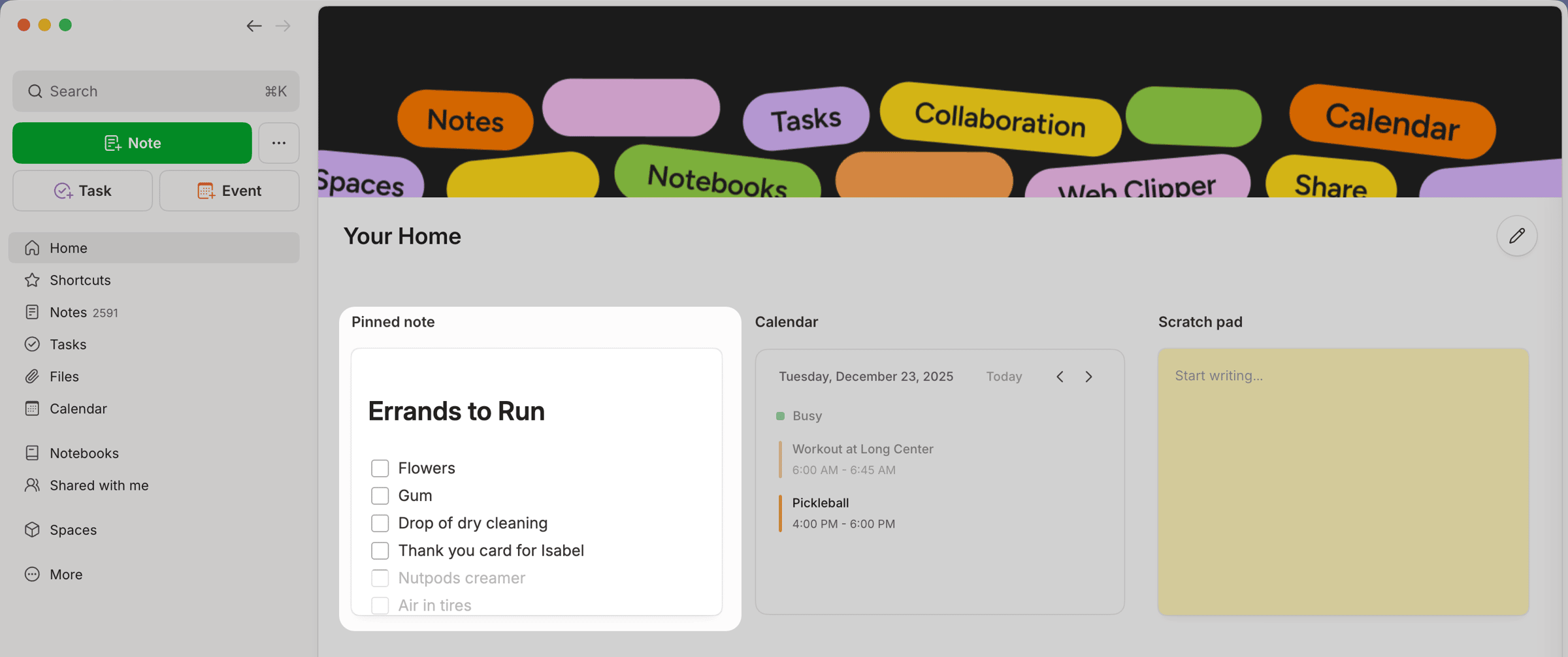
Feature a key note right on your Home dashboard. Every time you open Evernote, that critical information is front and center.
This is perfect for notes you reference daily — your current goals, a project you're focused on, or a checklist you're working through. It removes the step of navigating to find it.
The Focus Mindset
These features aren't just nice-to-haves. They're intentional design choices that support how productive people actually work.
The best productivity systems don't just help you organize information — they help you ignore everything except what matters right now.
Try one of these focus features this week. Start with the one that addresses your biggest distraction. Then layer in others as you build your distraction-free workflow.
Because you don't need more time.
You need more focus.
Cheers to your productivity in the year ahead —
Stacey

Subscribe to auto-receive my next tip!
No fluff. Just practical, immediately actionable advice from someone who's been teaching Evernote mastery for over a decade. Sent every Monday, for free.