
A 30-second habit that keeps Evernote current
June 29 2026 | Issue 102 | Link to this issue | Subscribe
Hi Reader -
I just wrapped another successful cycle of the Starting Fresh with Evernote Challenge, and one habit I make sure every group of Challengers leaves with is simple: the work of organizing your Evernote account should be done using Evernote's desktop client. That's where you access the full power of the app.
It's a core concept that quietly shapes a lot – how your notes sync, how many devices your plan covers, and how quickly you get the newest Evernote features. That last one is today's focus.
Many users have never had it spelled out for them, so before we get to staying current, let me set the stage.
Evernote offers three client options: Web, Mobile, and Desktop. Which client you're using matters here, because each one stays current with new features in a different way.
Web – Evernote in your browser, at evernote.com. Accessing the latest features takes care of itself; open it and you're always on the latest version.
Mobile – the Evernote app on your phone or tablet. It updates through the App Store (iOS) or Google Play (Android), rolled out in phases over about a week, with the option to also manually install the latest update on iOS devices.
Desktop – the (free) program installed on your Mac or Windows computer. It's the one with a catch, and the topic of today's email.
First, Are You Up to Date?
It's not uncommon for me to get these kinds of replies to the newsletters I send:
"I don't see the megaphone icon at the bottom-left of my desktop app on my MacBook Air. Instead I have a bell icon, which brings up notifications. Why don't I see the megaphone and the new What's New page?"
The short answer: this user is not on the current version of the desktop client. The feature I introduced in that email (the What's New screen) only shows up in the most recent client.
So two questions: how do you know if you're current, and how do you fix it?
Check your version. On the desktop client, open Help → Release Notes. The version you're running shows right at the top.
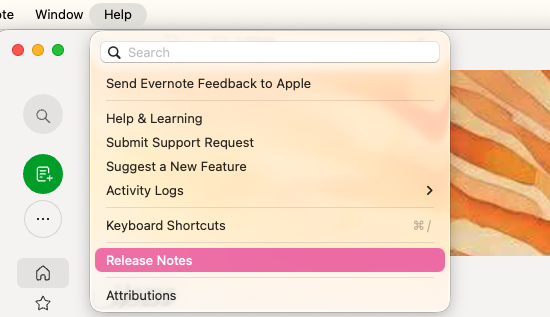
Update it. You can wait for Evernote to prompt you – when a new version is available, an in-app notification lets you know. But the real advantage of working on desktop is that you don't have to wait. You can manually install the update. It's not hard to do. Go to evernote.com/download and install the free app. It's something I do every time there's a new update (weekly), and it only takes about 30 seconds.
🧠 Academy Members: I walk you through the manual update process, step by step, in the lesson Keep Current with the Latest Client from the Foundations & Tips course.
The Desktop Catch: Two Ways to Get It
There are two ways to get the desktop client – your computer's app store, or directly from Evernote's website – and the app store version updates on the store's timeline, not yours. The direct download from Evernote is the one that lets you grab the latest and greatest, the moment it's out.
Both are legitimate ways to install Evernote, but I get mine straight from Evernote every time. It comes down to speed: new features the moment you know about them – like when you read about one here – and bug fixes the day they ship. A tiny detail, but it's the difference between keeping up with Evernote and being a step behind.
Are you updating from the app store, or from Evernote directly?
Grab the latest desktop app anytime from: evernote.com/download
Cheers to staying current –
Stacey

Subscribe to auto-receive my next tip!
No fluff. Just practical, immediately actionable advice from someone who's been teaching Evernote mastery for over a decade. Sent every Monday, for free.