
Two AI Tools, Two Different Jobs
December 15 2025 | Issue 74 | Link to this issue | Subscribe
Hi Reader –
You may have noticed some new AI features appearing in your Evernote account lately.
Evernote is rolling out AI Assistant and Semantic Search to some users now, with most paid users expected to have access by the end of the year. You may or may not have access yet — but either way, it's worth understanding how these tools work.
Both use AI to help you work with your notes, but they're built for different jobs. Let me break down what each one does and when you'll want to use one versus the other.
AI Assistant: Your Personal Evernote Helper
Developed in collaboration with OpenAI, AI Assistant is a chat interface that lives in a dedicated sidebar on the right side of Evernote.
Think of it like having a conversation with ChatGPT — if ChatGPT had access to your Evernote account.
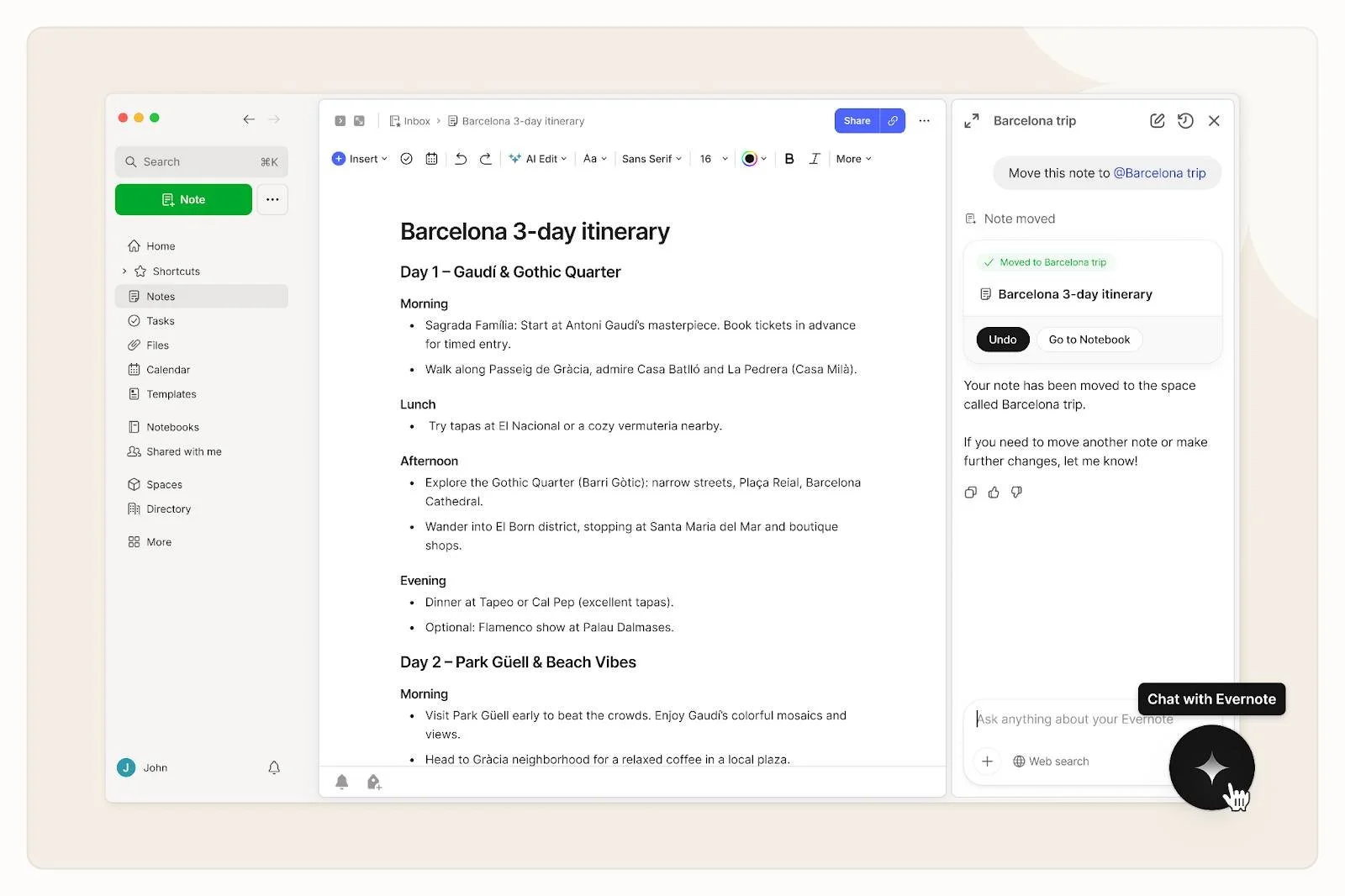
When you ask the AI Assistant a question, it first looks at the note you currently have open for context. If needed, it will expand to search your other notes.
And if your question can't be answered from your notes, the assistant may ask if you want to search the web and bring that information into your conversation.
Here's what the AI Assistant can do:
Search and retrieve: Ask questions about your notes using natural language and get answers with source citations
Summarize and rewrite: Condense long notes, adjust tone, translate text, or fix grammar
Organize content: Move notes between notebooks, add tags, and list tasks by due date
Explore beyond your notes: Search the web for additional context without leaving Evernote
Availability: AI Assistant is currently being rolled out to Evernote users on Advanced and Enterprise plans, then Starter, and will be available to all plans (even free) when v11 launches.
Use AI Assistant when: You need to work with your information — summarizing, reorganizing, generating content, or asking follow-up questions about what's in your notes.
Semantic Search: Find by Meaning, Not Just Keywords
Semantic Search is an enhanced version of Evernote's search that finds information by meaning, not just exact keywords.
Here's what that means in practice: if you search for "Italian recipe," Evernote might surface a note titled "How to make lasagna" — even if those exact words don't appear anywhere in your search.
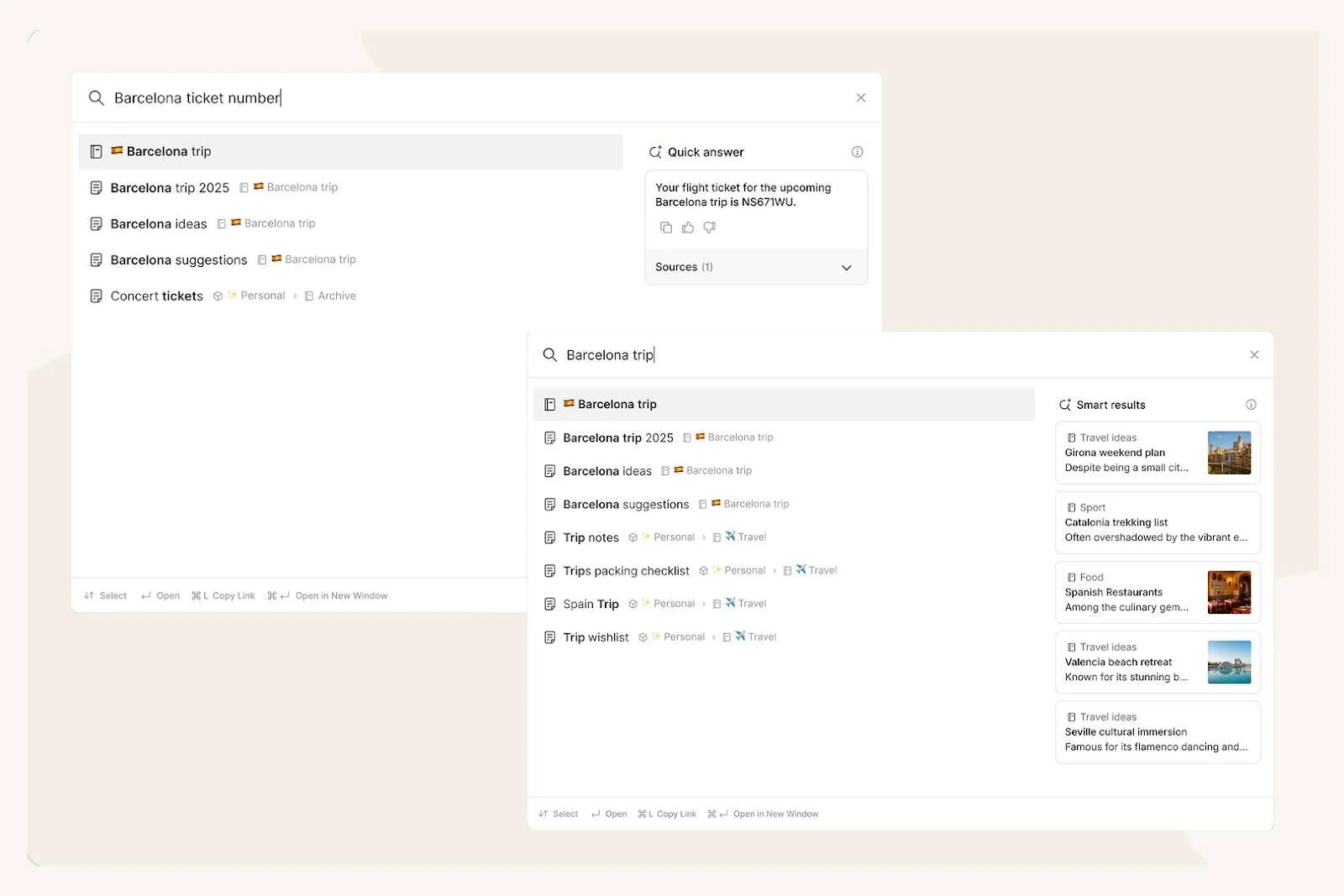
Semantic Search lives in the same search box you've always used. When you type a query, you'll now see:
Direct matches: Notes containing your exact keywords (the standard search you know)
Smart notes: Related notes that discuss similar topics, even without exact word matches
Quick answer: When your query is a question, you may see a short AI-generated answer right in the search results
The best part? This all happens within Evernote's secure infrastructure, so your data never leaves Evernote's servers.
Availability: Semantic Search is currently available as a beta preview for select paid users, but will be available to all plans (even free) once v11 launches.
Use Semantic Search when: You want to quickly find information but can't remember the exact words you used. It's fast, it's built into the search you already use, and it's perfect for quick searches.
Privacy Management
Both features are opt-in. You can enable or disable them individually in Settings → Preferences → AI features. Your choice, your control.
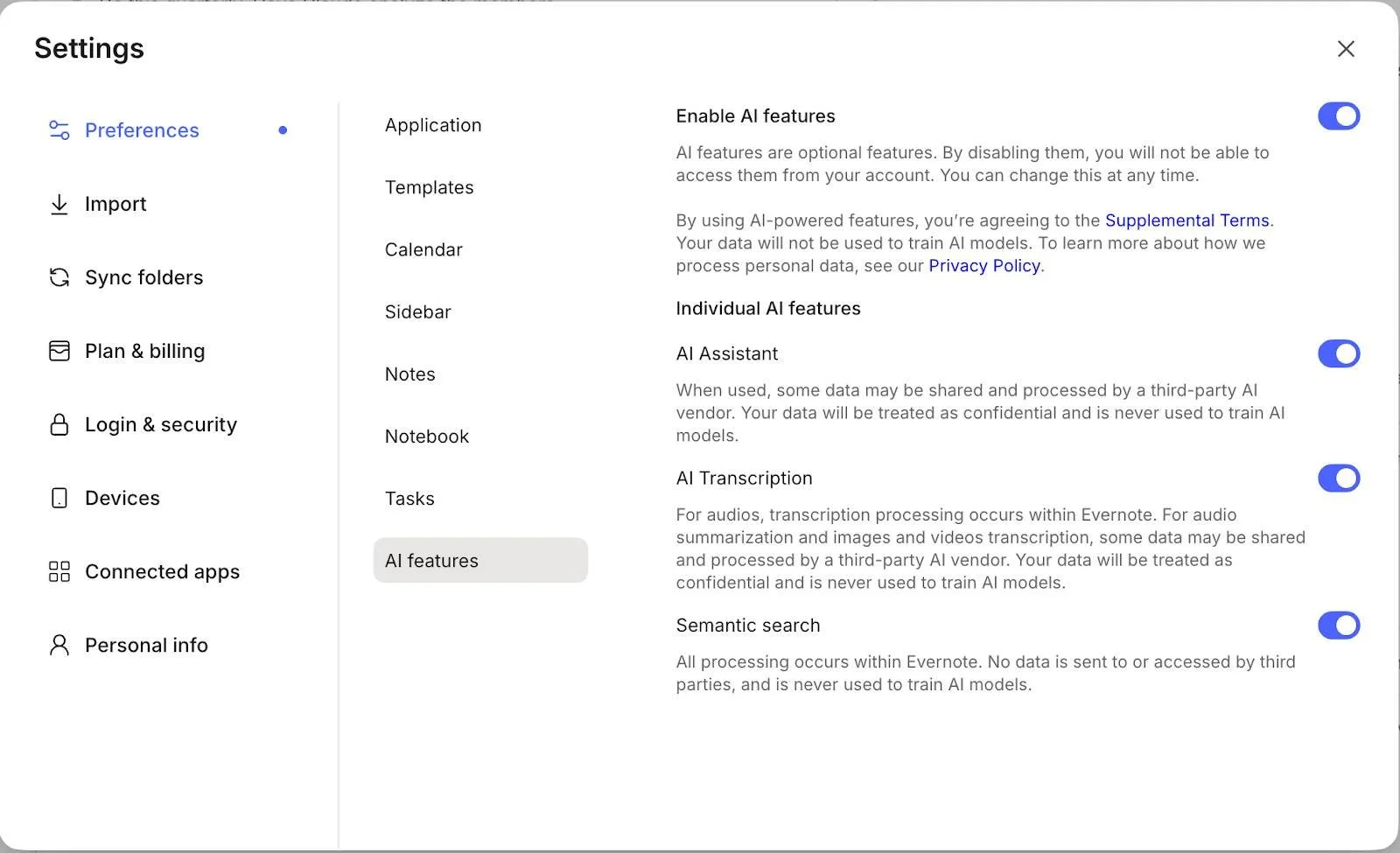
Evernote is transparent about which features process data internally (like Semantic Search) and which connect to third-party AI providers (like AI Assistant, which uses OpenAI). Either way, your content is never used to train AI models — not by Evernote, not by anyone.
Seeking Early Use Cases
Inside the Academy, we're chatting about ways to use these new tools. And, the most common question is: "What should I actually use it for?"
It's a bit like asking "What should I ask ChatGPT?" — the possibilities are endless.
So I'm turning the question to you. If you've got access and have been trying it out: What are you finding success with? How are you using the AI Assistant in your workflow?
Let me know. I'll compile the best use cases and share them in a future newsletter.
Cheers to your productivity —
Stacey

Subscribe to auto-receive my next tip!
No fluff. Just practical, immediately actionable advice from someone who's been teaching Evernote mastery for over a decade. Sent every Monday, for free.