

Hi Reader –
Many users never discover one of my favorite Evernote features: merging notes. This feature is a very helpful way to organize your account and keep relevant information together. Think of it as Evernote’s equivalent of stapling pages of paper together—keeping everything you need in one place while retaining the full context of each note.
Whether you’re looking to clean up your account, group related notes together, or streamline your workflow; merging notes is a simple and effective way to help keep your account tidy.
How merging notes can simplify your workflow
Merging notes in Evernote isn’t just about combining content — it’s about optimizing your productivity and keeping your workspace organized.
Here’s how this feature can simplify your workflow:
Reduce Clutter: By merging related notes, you can reduce the number of individual notes stored in your account. This makes it easier to find what you need when you need it, without sifting through multiple entries.
Organize Information: Merging notes allows you to group relevant information together. Whether it’s project details, meeting notes, or research materials, having everything in one place ensures you have the full context at all times.
Streamline Workflow: A more organized note structure means less time spent searching related notes. This helps you maintain a clean, efficient workspace, allowing you to work more effectively and with fewer distractions.
By adding this feature into your workflow, you can keep your Evernote account neat and your mind focused, making it easier to manage tasks and projects.
How to merge notes
Merging notes is a simple skill to learn. Here’s what it takes:
Requirement: Evernote’s Desktop App
The merging feature is only available in the Evernote desktop app, not in the web nor mobile versions. If you haven’t already, download the free desktop app to access this feature and take full advantage of all Evernote offers.
If you're a free user, to use this feature, you’ll need to select the desktop app as your Evernote client of choice (you only get access on one client as a free user). Or, eliminate the constraint of using just one Evernote client by upgrading to a Personal plan: Save 15% on the annual plan with my link.
In the Notes list, select the notes you want to merge:
Begin by selecting the notes in your note list. You can choose up to 100 notes at a time to merge into one. This selection process can be done using either contiguous or non-contiguous notes, depending on your needs.
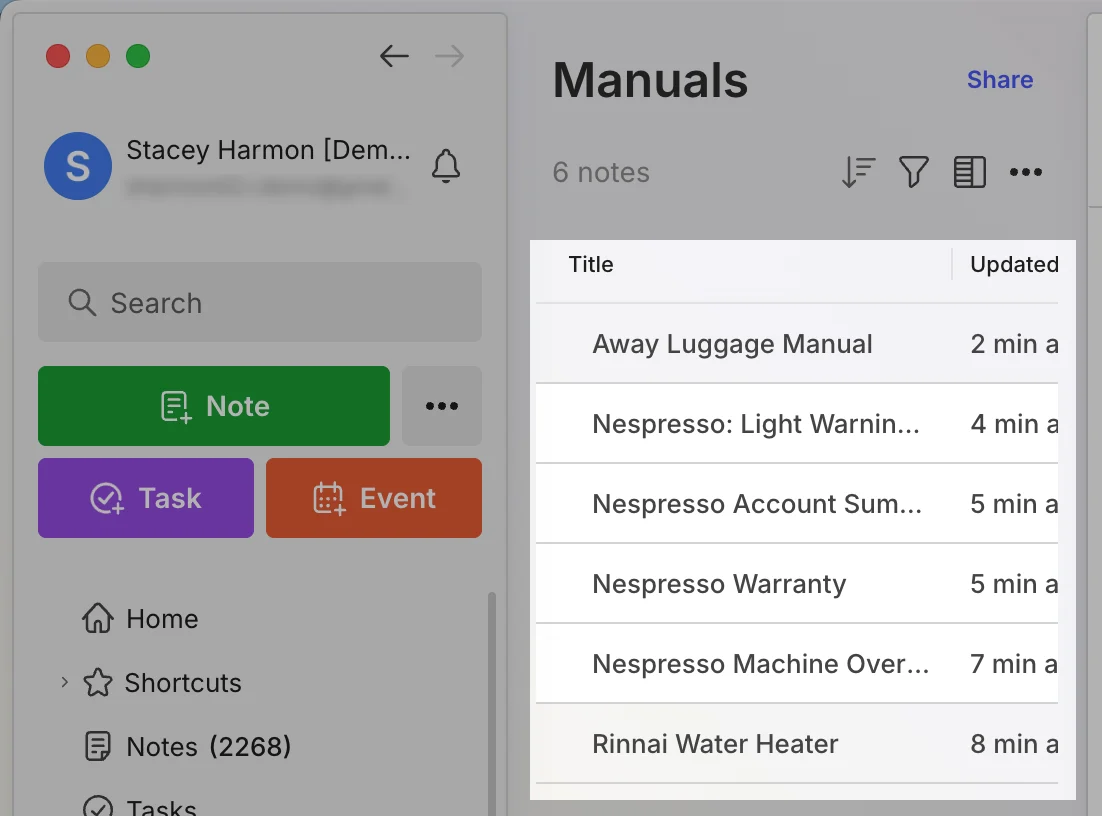
🧠 Academy Members: Learn how to select contiguous or non-contiguous notes, plus all the advanced Merge feature options in the Masterclass: Merging Notes.
Click the Merge icon:
Once your notes are selected, in the blue bar that will appear at the bottom of your screen, click the merge icon to initiate the process. A Merge notes dialog box will appear, allowing you to confirm the merge.

Advanced Note Merging Techniques
There are several options to customize a note merge so they are easier to sort through after the action is complete. You can override the default note name (it automatically inherits the top note’s title), re-order the notes, and more. These can be defined in the Merge notes dialog box that appears after clicking the merge arrow button.
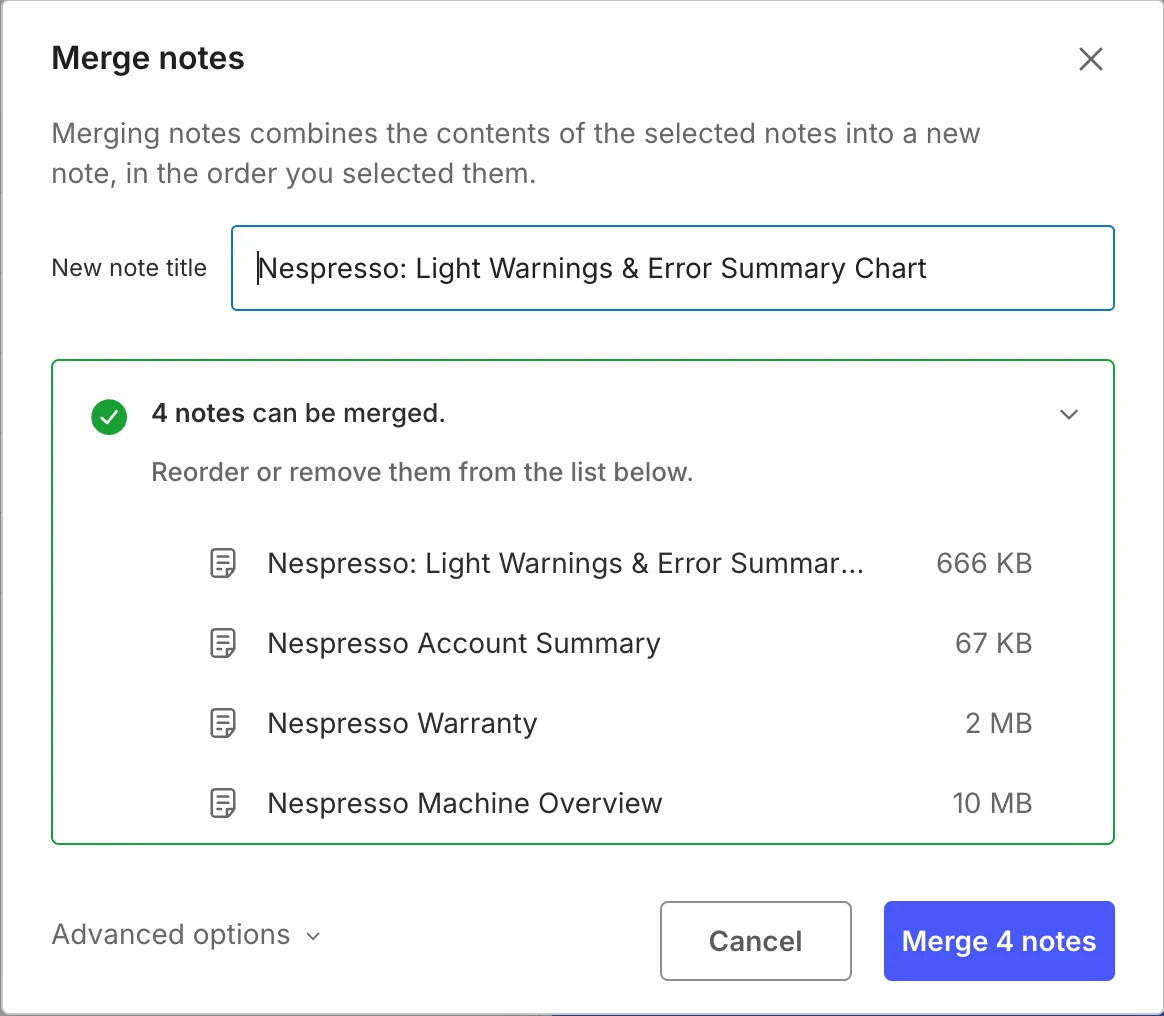
In the Academy, we cover not only the basics of this feature, but also discuss the intricacies of merging notes, advanced option nuances and specific use case ideas. Join the Academy to gain immediate access to the full training and so much more!
Merge notes is just one useful feature that helps maintain a more organized and efficient Evernote account.
Whether you’re merging notes for project management, research, or personal organization, understanding the full potential of Evernote can make all the difference.
Cheers to your productivity –
Stacey 💚